AI assistants: ask about your journal over MCP
Pro and Fleet.
An AI assistant connected to TakeJournal’s MCP server can answer questions about your own trading: your worst weekday and why, how your trades after a loss went, what last week’s notes said. It reads your journal through the same tools as TakeJournal’s own AI chat, so its figures are the app’s; it changes nothing.
Claude and ChatGPT
Section titled “Claude and ChatGPT”In Claude, add a custom connector with the address https://app.takejournal.com/mcp (Settings → Connectors); in
ChatGPT, add an app with the same address in developer mode, as its help describes. Neither needs a key: the app sends
you to TakeJournal, where you sign in and allow it to read your journal, with or without the notes and the accounts’
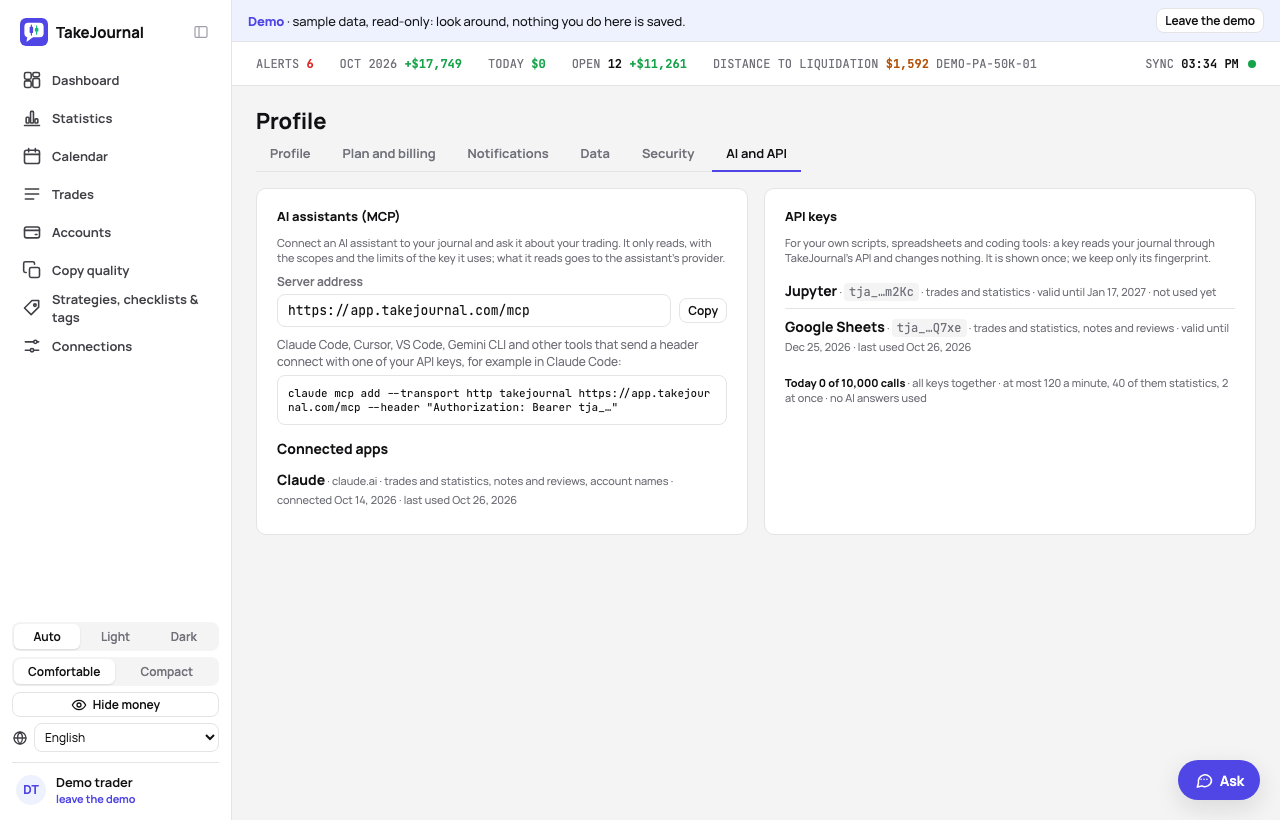
names and numbers. It then appears on Profile → AI and API under Connected apps, and Disconnect stops it
reading at once. It stays connected while it asks; after 30 days without a question it has to ask you again. Up to ten
apps can be connected at once.
Adding TakeJournal
Section titled “Adding TakeJournal”Make an API key on Profile → AI and API → + New key (Notes, the day journal, AI reviews and Spotter’s messages and Account names and numbers are ticked: untick what the assistant should not read), then add the server with it. In Claude Code:
claude mcp add --transport http takejournal https://app.takejournal.com/mcp --header "Authorization: Bearer tja_…"Cursor, VS Code, Gemini CLI and other tools that take a server with its headers in a settings file:
{ "mcpServers": { "takejournal": { "url": "https://app.takejournal.com/mcp", "headers": { "Authorization": "Bearer tja_…" } } }}Each tool names the settings slightly differently (VS Code’s list is servers, Gemini CLI’s address httpUrl); its own
guide says where. The server’s address is also on Profile → AI and API.
What the assistant can read
Section titled “What the assistant can read”Eight tools, each of which only reads:
list_accounts: the accounts with their firm, state and the firm ruleslist_trades: the trades, filtered as on the Trades pageget_trade: one trade with its journal and its trade on each accountget_statistics: the dashboard’s statisticsgroup_trades: the trades grouped by weekday, hour, setup and moreget_period: a day or a week with its notes, its AI review and Spotter’s messageslist_labels: the tags, categories and strategiessearch_guide: this guide
Each account comes with its link, so the assistant can point you to it. With Account names and numbers allowed, the
assistant names your accounts as TakeJournal does; without it they appear as ACC-12 and their numbers and names stay
on TakeJournal, as with the AI chat: the account’s page shows its alias beside its number (“In AI assistants: ACC-12”).
The notes, the AI review and Spotter’s messages come only when the assistant may read notes.
Privacy
Section titled “Privacy”What the assistant reads goes, with your question, to the company that runs it (Anthropic for Claude, OpenAI for ChatGPT, Google for Gemini) under that company’s terms, not TakeJournal’s; see the Privacy Policy. Revoke the key on Profile → AI and API and the assistant stops reading at once.
Limits
Section titled “Limits”The assistant’s calls count with your keys’ calls, in the same limits: each request is a call, and statistics and groupings are heavy ones. None of them uses your AI answers.
The AI answers from our guide: how TakeJournal works, imports, prop accounts, the plans.
Your question goes to Anthropic to be answered. We keep the conversation for 30 days to improve the guide, then delete it. No investment advice. Privacy policy