Account settings and the distance to liquidation
Account settings on every plan; the distance to liquidation and the intraday trailing level on Trader and above.
A new account
Section titled “A new account”Accounts → New account opens a wizard of three steps in one dialog, Back and the next action always in the same place:
- Where it is from — the firms of the catalogue as tiles with a search by name; My firm is not here; and, not from a prop firm, My own account (at a broker or an exchange) or A practice account, which ask the name, the type and the currency. Connect it instead opens the Connections page for a broker, whose accounts come in by themselves.
- Product — the firm’s products in their families with the sizes as buttons, one click choosing both; a name, the size and the drawdown rule narrow a long list.
- Start and fee — the product’s line (its type, start balance, target, drawdown and daily loss), How many accounts (a copier’s several of one product, numbered: Apex 50K #1 … #5), Started (today unless you change it), the first fee with its payment — what you paid for the product last time, else its list price, a subscription or an evaluation fee — and the name. Create account opens the account’s page, or the list for several.
A firm whose trades come through a platform TakeJournal syncs (TopstepX for Topstep) asks Do you trade it there? above its products. Connect asks for your login on that platform (what you sign in with; the rest folded under Advanced), signs in, reads the login’s accounts and proposes each one’s product from the size and the drawdown the platform reports; where several fit, you choose. Untick the accounts you do not want synced (the plan’s number of accounts is counted as you tick), and Set up N accounts gives each ticked one its product in one step, with Undo in the notice. The fees and the start days follow on each account’s page, or for all at once in the bulk edit. TakeJournal only reads: it never places an order.
A firm whose accounts run on NinjaTrader or Tradovate (Apex, MyFundedFutures, Take Profit Trader) asks Do you trade it on NinjaTrader 8? too: Set up the add-on makes the NinjaTrader 8 add-on’s connection, named after the firm, and opens the Connections page, where its card gives the download; nothing to sign in to.
A firm the catalogue does not know starts in one of three ways: from a similar product of the firms we know (your target and drawdown typed mark the ones that match), with empty rules (the type, the start balance, the target and the drawdown now, the rest later on the account’s page), or by asking us to add it, through the chat’s Report a problem or an idea or a tick in the last step. A subscription renews a month after each payment, so Subscription renews follows the ledger. The product’s rules come with the Trader plan and above, and its fee in the ledger likewise; on Free the account takes the product’s type, firm, start balance and drawdown.
Settings
Section titled “Settings”Accounts → the account. The settings sit under the figures in two cards shown as text: what the account is, in words, and its rules as a list. Edit in a card’s heading opens its fields, with Save and Cancel at its foot (“unsaved · ⌘S” while something is typed, “saved 3:57 PM” after); ⌘S saves, and leaving the page with an edit unsaved asks first (Stay, Leave without saving, Save and leave). Every field says what it wants: money in the account’s currency, counts in days or contracts, and one line under each field in the firm’s words with an example.
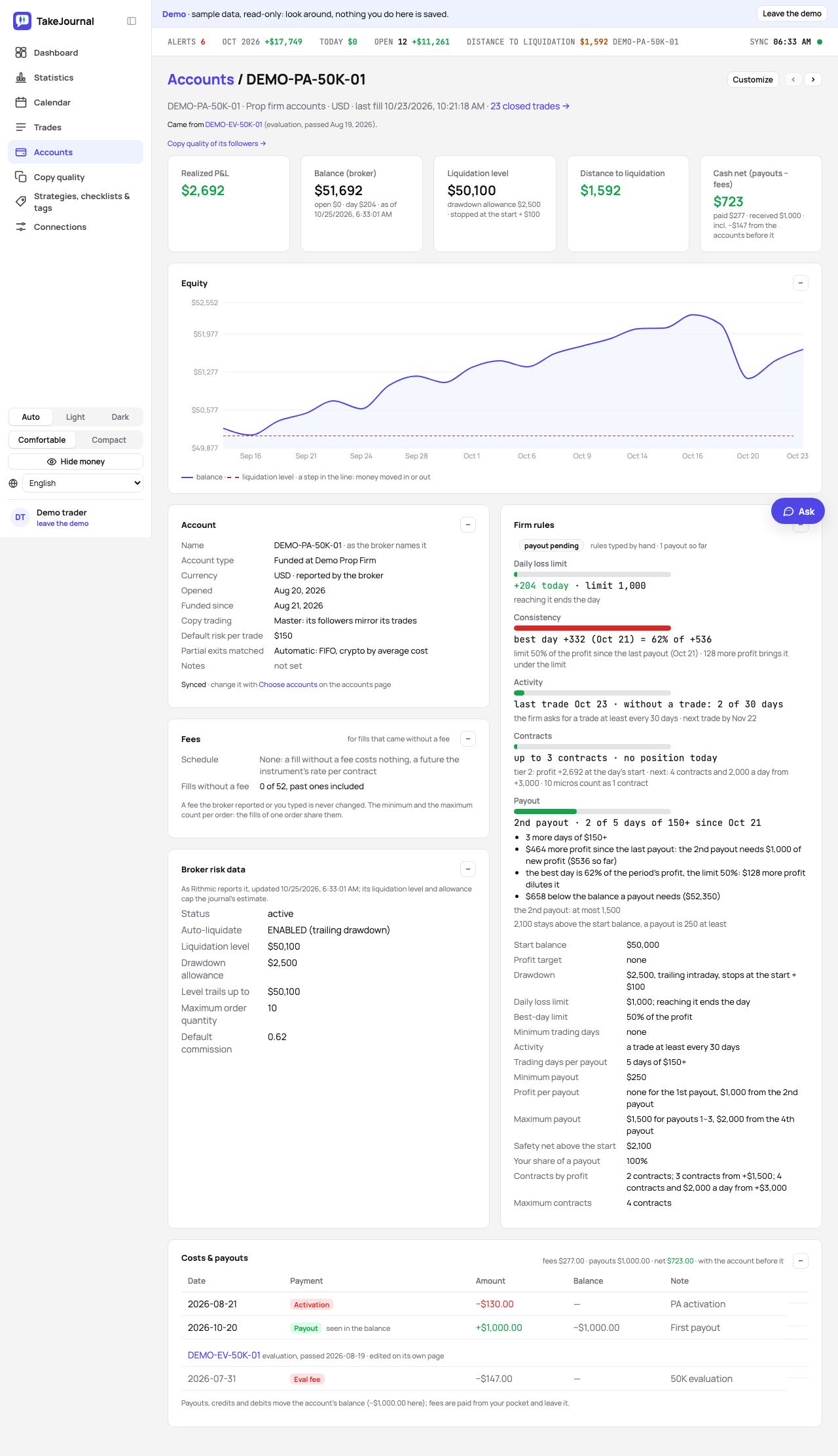
- Account — the name (a manual account’s; a broker account keeps the broker’s), the account type with its firm (“Evaluation at Topstep”), the currency, the dates Opened, Funded since and Subscription renews (with “renews in 5 days” or “expired 3 days ago” next to it), copy trading, the default risk per trade (the unit of R for trades without a planned stop) and the notes. Edit opens the name, the currency, the account type — Evaluation, Funded, Live, Personal or Practice, each explained under the field and below — the firm, with the catalogue’s names offered so that one firm is spelled one way, Opened and Funded since (the renewal follows the subscriptions in the ledger), the risk and the notes; on a personal or practice account the prop firm fields wait behind Prop firm fields. The rare actions wait behind ⋯: Copy trading… (the role — Single, Master or Follower, a line each — and for a follower the copy size (× the master) and the connection whose master it follows), The account that took over… (lineage), the ends Passed…, Failed… and Cancelled… as the account’s state allows (below) and, on a manual account, Delete account…, which asks with the count of its trades.
- Firm rules — where the account stands against its rules, then the rules: with a firm product applied a list of its values (the start balance, the target, the drawdown, the daily loss limit and the rest), the inputs behind Change the rules; without one the product picker with Apply, the start balance, the profit target, the drawdown rule (trailing intraday, trailing end-of-day, static or none, a line each) and the drawdown allowance, and the rules in the firm’s order: Firm rules. A % next to the target, the daily loss limit and the allowance types them as a share of the start balance and stores money, as the forex firms state their limits. Its Save shows while a value is typed.
The page’s layout
Section titled “The page’s layout”Customize, next to the account’s name, lists the page’s cards: tick the ones it shows and drag a row or use its arrows to change the order. A card that shares its row — the account’s own cards and the firm’s rules — goes Left or Right; the cards next to each other in the list stand in two columns that end together. By default the equity comes right under the figures, then an evaluation’s chance to pass, the account’s cards on the left beside the firm’s rules, and the ledger. One layout serves all your accounts: a card an account has no use for keeps its place and does not show there, and Customize says where it shows. A card’s – minimises it to the bottom of the window and Reset to default brings the default back, with Undo, as on the dashboard. What is due — an evaluation’s attempt, the question whether it passed, a payout under way — stays under the figures.
Several accounts at once
Section titled “Several accounts at once”Every row of the Accounts page has a checkbox (the one in the head ticks every account shown), and the first tick brings a bar (“3 selected · Edit · Add a cost · Clear”). Edit opens the bulk edit with the same groups, labels and hints as the account’s cards (account type, role and copy size, the opening day, the end, start balance, and for an evaluation, a funded or a live account also the firm, its funded date, a firm’s product with its rules, profit target, drawdown rule and allowance: the type chosen in the edit decides, else the ticked accounts’ types); a field left empty stays as it is on every account (“unchanged” beside its label), and Opened offers today when every ticked account was added today without an opening day; the master is set on its own account’s page. Add a cost puts a fee on every ticked account: the payment (subscription, evaluation fee, activation, other fee), the day it was paid, the amount and a note. The amount is either Amount each, what every account paid, or Split a total, the sum for the accounts together spread to the cent: $85 on three accounts is $28.34, $28.33 and $28.33, and the field says so before you add it. A subscription moves each account’s renewal a month after the day it was paid. The edit applies at once and its message offers Undo for ten seconds, which takes back the settings, the rules, the dates and the added fees together; the Accounts page’s Recent changes keep it for 30 days, as long as none of its accounts, rules and fees was changed again since. An undo that would make a demoted master the master again waits while another account is the master of that connection.
Account types
Section titled “Account types”What an account is for decides what the app does with it: which figures it counts in, which rules it watches, where its notes go. The type is set when the account is created (a manual account’s dialog asks first whether it is a real account’s trades or a practice account, and proposes the type) and changed on its page.
| Type | What it is | The firms’ names | What TakeJournal does with it |
|---|---|---|---|
| Evaluation | the firm’s test of a trader, before anything is paid out | Combine (Topstep), Challenge (FTMO), Test (Take Profit Trader), Evaluation (Apex, MyFundedFutures) | counts in the real results; the firm rules and the distance to liquidation; a reset starts a new attempt; passing ends it and the funded account that follows keeps the lineage |
| Funded | the firm’s account that pays out; the capital is still the firm’s and simulated at most futures firms | PA (Apex), XFA (Topstep), Sim Funded (MyFundedFutures), PRO (Take Profit Trader) | counts in the real results; the payout rules; the fees, the activation and the payouts in the ledger; Funded since |
| Live | the firm’s own capital, given to a trader who passed | LFA (Topstep), PRO+ (Take Profit Trader), Live (MyFundedFutures) | counts in the real results; no reset; deposits and withdrawals in the ledger |
| Personal | your own account at a broker or an exchange, your capital | — | counts in the real results; deposits and withdrawals; no firm rules unless you set some |
| Practice | a demo, paper or simulated account without a firm | — | its notes are kept apart (the calendar shows them with the type chosen), and it stays out of Real results; Spotter leaves it out unless you switch it on |
The Account type chip of the filter bar takes several types at once, with the presets Prop accounts and Real
results (the words). A broker’s new account arrives as Personal (a prop firm’s as
Live, for you to set its evaluation or funded type); a manual account is Practice unless you pick another type. A
broker’s simulator, demo or paper account (NinjaTrader’s Sim101, an account on a MetaTrader demo server, every account
of a connection to the broker’s demo) arrives as Practice, unless its server or its name names a prop firm, whose
evaluations often run on demo servers (FTMO-Demo).
The account’s currency
Section titled “The account’s currency”Every account counts in its own currency: its trades, fees, funding, ledger, start balance, drawdown, firm rules, equity and exports are all in it. A broker that reports the currency (Rithmic) sets it; otherwise it is dollars until you choose another, any currency the European Central Bank fixes daily (EUR, GBP, CHF, CZK, JPY and others), when you create a manual account or in the Account card of its page. USDT, USDC and the other dollar stablecoins count as dollars.
A trade in an instrument of another currency (micro E-mini futures on an account in euros, the DAX future on an account in dollars, a pair quoted in dollars) is converted at the ECB’s reference rate of the day it closed (a weekend at Friday’s); fees and funding at the rate of their own day. The futures roots TakeJournal knows carry their currency: the CME contracts in dollars, the Eurex contracts (FDAX, FDXM, FDXS, FESX, FSXE, FGBL, FGBM, FGBS, FGBX) in euros, the SMI (FSMI) in francs and the FTSE 100 (FTSE) in pounds; the administrator adds other roots with theirs. A stock counts in the currency you choose when you first type a trade on it (the account’s otherwise); a stock declared in an import takes the account’s currency. A trade closed before its day’s rate is published takes the latest one and is valued again when the day’s arrives. The broker converts at a rate of its own, so the balance it reports may differ from the journal’s by a little: the check of the balance allows for it.
Changing the currency corrects the setting and converts nothing you typed: the start balance, the drawdown, the rules and the movements you entered stay as they are, read in the new currency. The trades are valued again, and what an exchange or a file valued in dollars (fees, funding, deposits of coins) is valued again in the new currency. The change applies at once, and its message offers Undo.
The firms’ templates are in dollars and apply to accounts in dollars; an account in another currency types its rules.
Several currencies on one page
Section titled “Several currencies on one page”A page over accounts that share one currency counts in it. Where the accounts differ (a prop account in dollars and an exchange account in euros on the dashboard, the calendar, the trades list, a day’s or a week’s page, the copy-quality report), every amount is converted into the currency of your profile, dollars until you choose another on the Profile page, each at the ECB’s rate of its own day: a trade at the day it closed, an open trade at the day of its latest price. The AI chat and the reviews name the currency they count in. Choose one account in the filters and its figures are in its own currency again; an account’s page, a trade’s page and the exports never convert.
Fee schedules
Section titled “Fee schedules”A broker’s import brings the commission it charged, but a trade you type in without a fee, or a file without fees, has none. The Fees card on an account’s page, under the Account card, sets what the broker charges for those fills: per asset a rate per share (stocks) or per contract (options, futures), a percent of the order’s value (crypto, forex and CFDs), a minimum and a maximum per order, and Opening orders only for a broker that charges nothing to close. Edit offers ready-made schedules at October 2026 list prices, without exchange and regulatory fees: Interactive Brokers Fixed ($0.005 a share, at least $1.00 and at most 1 % of the order’s value; $0.65 an option contract, at least $1.00; $0.85 a futures contract), Interactive Brokers Tiered (its first tier), tastytrade ($1 an option contract to open, at most $10 an order, nothing to close; $1.25 a futures contract), Schwab, Fidelity and E*TRADE ($0 shares, $0.65 an option contract), and Robinhood and Webull ($0). Change any row and the schedule becomes your own; the amounts are in the account’s currency.
The schedule prices every fill of the account that came without a fee, past ones too: the trades are priced again when you save, and a trade’s page says its fees are by the account’s fee schedule. A fee the broker reported or you typed, $0 included, is never changed; an expiry, an assignment or a transfer pays nothing. The minimum and the maximum count per order: the fills of one order share them, and a fill without an order number is an order of its own. For futures the schedule’s rate takes the place of the instrument’s fee per contract on this account. None removes the schedule, and the save’s message offers Undo.
The end of an account
Section titled “The end of an account”An evaluation that reached its target asks under the figures — Profit target reached on Oct 10 … Did Topstep pass the evaluation? — and one whose limit is broken asks the same in red; Not yet hides the question on this device. The Account card’s ⋯ offers the ends the state allows: Passed… and Cancelled… once the target is reached, Failed… and Cancelled… once a limit is broken, all three while an evaluation runs, Failed… and Cancelled… on a funded account. Each asks the day: the day the target was reached or the limit broken, else the day of the last trade.
- Passed… asks what the firm gave next. On a manual evaluation: one of the firm’s funded products of the same size, made with its activation fee (what you paid for the product last time, else its list price) and its name, opened on the day it passed; An account I already have, given its product; or Nothing yet. On a synced evaluation: the login’s accounts, the ones that came in since it passed first, each with its funded product proposed from what the broker reports, or Not synced yet. The funded account becomes the evaluation’s successor (lineage); a passed evaluation without one offers Its funded account… in ⋯.
- Failed… offers Reset, a new attempt on this account — on the trading day after the limit was broken, with its fee (your last price for a reset of the product, else its list price) as one entry in the ledger; on a synced account the broker’s balance brings the reset and only the fee is recorded — then A new evaluation, the new account’s wizard with the same product, or Stop here. After a reset the page names the attempt: Attempt 2 since Oct 9.
- Cancelled… ends the account on its day.
When a copier passes several evaluations together and the funded accounts come with a later sync, the Accounts page shows a bar per broker login — 3 evaluations passed · 3 new accounts from My Apex login — whose Pair… lists each passed evaluation (its target reached or marked passed) with a new account of the login, proposed by the size and the order they came in, and its funded product. Change any pair or choose not here yet; Link 3 funded accounts ends the evaluations as passed on their days and sets the lineage, with Undo in the notice. Later hides the bar on this device until something changes.
On an ended account Change how it ended… offers it runs again; for many accounts at once the bulk edit’s Ended does the same, where runs again takes the end back. An ended account keeps its trades, notes and statistics: it counts in the dashboard and the calendar as before. It is no longer synced, leaves the account choice and frees its place in the plan’s account limit; the Accounts page shows it with a badge (“failed Oct 2”) once its Status chip shows all or the ended accounts; the default, Synced, hides it together with its subscription reminder. It takes nothing dated after its end day: a trade typed in or moved in, a fill added or moved, a funding payment or an option’s end from a later day is refused, and an import leaves a file’s fills from after it out and says how many; its own history up to that day, such as a statement that arrives after a failed evaluation, still comes in. To add a later trade, set it running again.
An account the broker no longer lists shows “not at the broker since” with the day of the first sync without it, and stays on the Accounts page, whose note offers to select all such accounts for the bulk edit, until you choose how it ended. Choosing the synced accounts
Your plan’s accounts
Section titled “Your plan’s accounts”The plan’s account limit counts every account in use: synced from a broker or manual, of any type, practice included (Free 1, Trader 5, Pro 20, Fleet any number). An ended account, a passed evaluation and one the broker no longer lists keep their trades and no longer count. New manual account, and an import that creates one, is refused when the plan is full, with the way out: end an account, or a plan with more.
Over the limit, after a smaller plan or the end of the trial, nothing is deleted: the accounts with the latest trades stay in use up to the limit and Choose accounts asks which ones you keep. A broker account left out is not synced and loses its trading data (the broker keeps its own; checking it again brings its history back). A manual account left out keeps its trades, read-only: it shows read-only on the Accounts page, and its page offers no New trade and no Import trades until you choose it again.
The Accounts list
Section titled “The Accounts list”Every account in one list, the tiles above it counting the synced accounts, naming the account closest to liquidation, adding up the realized result and listing the subscriptions that renew within a week. The chips under the heading — Account type (several at once), Role, Status (Synced by default: chosen for syncing and running; All accounts; Ended; Not synced) and Search (name, ID or firm) — keep their state in the address, so a reload, Back and a shared link show the same list, and the column headers sort it. A row opens its account, whose ‹ › then walk the list in its order. New account opens the wizard (above). Choose accounts opens the choice of the accounts in use, broker and manual, within the plan’s number (your plan’s accounts). Under All accounts the ended ones wait folded at the end of the list (▸ 3 ended accounts); a click shows them. The table’s header stays on screen while a long list scrolls.
The distance to liquidation
Section titled “The distance to liquidation”From the start balance, the drawdown and the trades, TakeJournal keeps the account’s liquidation level and the distance between the balance and that level. With a trailing drawdown the level follows the peak of the equity; on Trader and above it follows the open profit inside trades too, from the trade’s bars, as the firm’s intraday rule does, and every trade records the smallest distance it touched. Where the broker reports the level itself (Rithmic, as R|Trader Pro shows it), that is the account’s level, and the estimate stands in only without it. Before the first trade the balance is the start balance, so a new evaluation shows its whole allowance at once: $2,000 on an Apex 50K, its level $48,000.
Most firms stop the trailing once the account is up: Topstep’s level stays at the start balance, Apex’s funded accounts at the start + $100, a few firms freeze it at the first payout. The firm rules card says where (Trailing stops, set by the firm’s product or typed by hand); once the level gets there it stays, the distance may grow beyond the allowance, and the equity chart’s level line runs flat. The tile under the level says so: stopped at the start + $100.
The Accounts page shows every synced account as a gauge against its drawdown allowance, the closest first, amber when the distance falls below three quarters of the allowance (an account without an allowance shows the figure and a link to set the drawdown); the ticker above every screen names the account closest to its level.
Related
Section titled “Related”Firm rules — daily loss, consistency, payouts · Fees, payouts and the lineage of an account · Master and followers
The AI answers from our guide: how TakeJournal works, imports, prop accounts, the plans.
Your question goes to Anthropic to be answered. We keep the conversation for 30 days to improve the guide, then delete it. No investment advice. Privacy policy