Calendar, day and week notes
Every plan; the day and week notes on every plan too.
The calendar shows a month as a grid of trading days with each day’s result and number of trades, the week totals on the right and the month’s summary above. Saturday and Sunday appear only when the month has a trade on a weekend day. The dashboard carries the same month as a card.
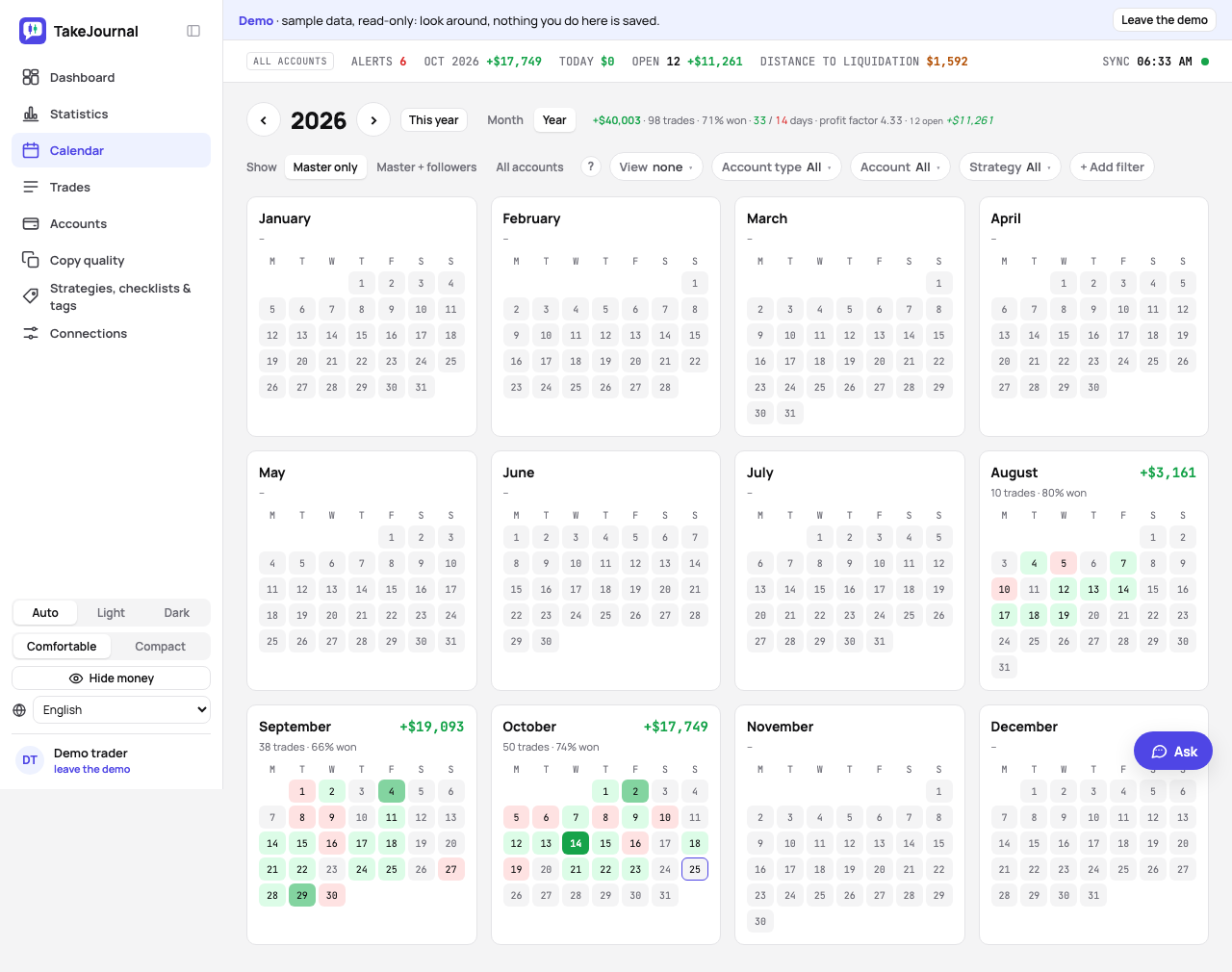
Month and Year next to the month’s name switch to the whole year: twelve small months with each trading day tinted green or red, the deeper the larger its result against the year’s largest day, each month with its result, its trades and the share of winning ones, and the year’s figures above. A month opens its calendar and a day its page, with the same filters; ‹ › step by a year and This year comes back.
$ / R in the calendar’s head switches the days, the weeks and the month between money and R: a day’s R is the sum over its closed trades with a known risk (a planned stop or risk, or the account’s default risk per trade), and a day without one shows –. The choice stays in the address, so a link opens in R.
The trading day
Section titled “The trading day”A day is the exchange’s trading day, as your broker and your prop firm date it, not midnight on your clock. A futures day runs from 18:00 New York time the evening before to 17:00 and is named by the day it ends: a fill at 19:00 ET on Monday evening belongs to Tuesday, as it does in Rithmic, Tradovate, NinjaTrader and the firm’s daily figures, and a Sunday evening is Monday’s. Stocks and options count on the exchange’s calendar day in New York, the after-hours session included. Crypto, trading around the clock, counts on the calendar day of your profile’s time zone (crypto). Forex and CFDs roll at the New York close, 17:00 ET, an hour before the futures session, so a Sunday evening’s pair is Monday’s too (forex); the Profile page can switch forex to the calendar day of your zone instead. The day is computed from the trade’s time, so it is the same for every trade you ever recorded; the trades list groups by it too and prints the clock date next to the time when the two differ. Today in the calendar is the session running now: after 18:00 New York time it is already the next day. The ticker’s Today and the Dates presets (Today, Yesterday, This week, Last 30 days…) take each market by its own day, so on a Sunday evening at 18:30 ET Today holds both a future of Monday’s session and a stock closed a minute before.
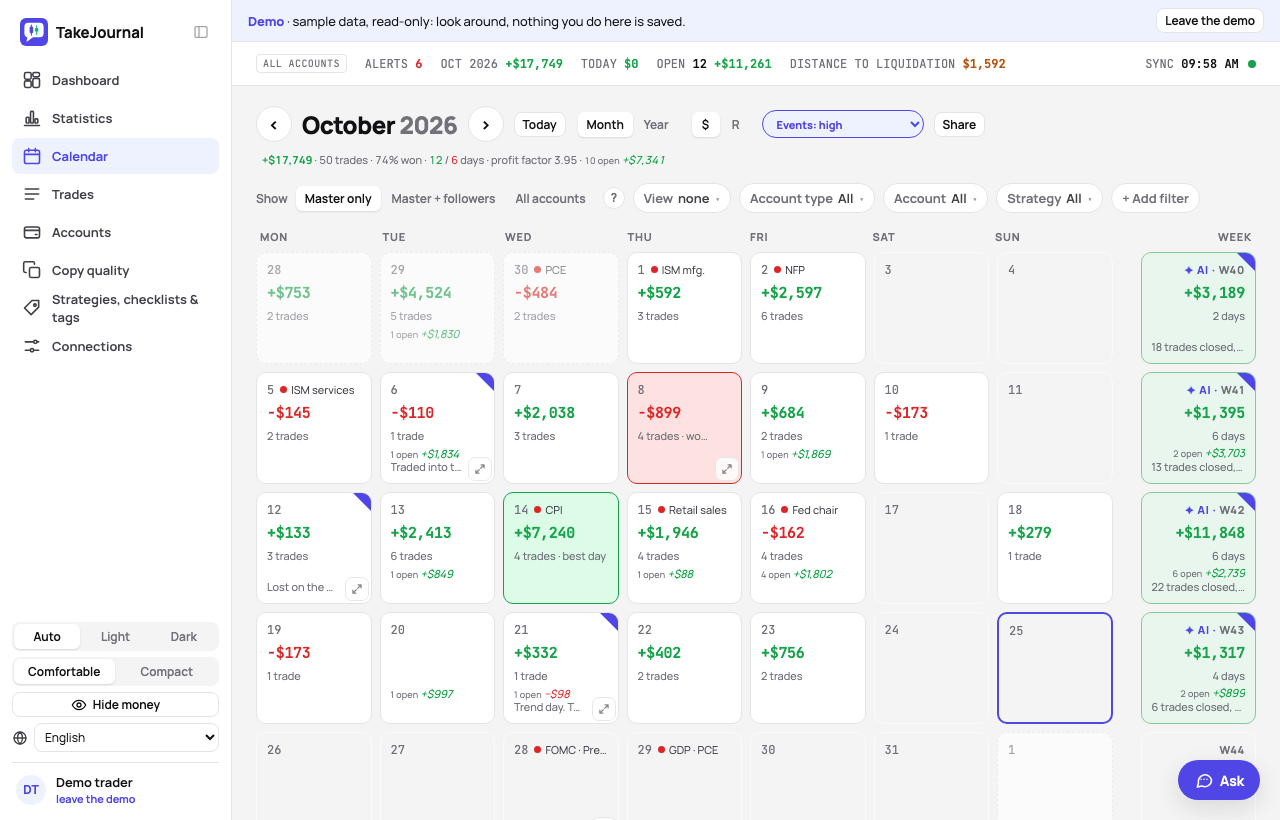
The rows grow with your window: the month’s weeks share the height under the filters, between a smallest and a largest row (smaller ones in the compact density), so a month fits a 1080p screen without scrolling. Every line of a day keeps its place, the date with the releases, the result, the trades, the open trades and the note, so the results of a row stand on one line. Where a day has more than its cell can show, a ⤢ button in the cell’s bottom-right corner opens the whole day over the calendar: every release with its time and impact, the result, the trades won, the open trades, the whole note and Open the day. Point at it or click it (Enter or Space from the keyboard); it stays while the pointer is over it and closes with Esc, its × or a click outside. On a phone a tap on a day opens the same from the bottom of the screen, with Open the day for its page.
A day opens its page: the trades of the day, the result, and the notes — one for the whole day and one per strategy, so a setup’s lessons stay with the setup. Weeks have the same page. Notes of practice trading are kept apart from the real ones: with Practice alone ticked in the Account type filter, or only practice accounts chosen in the Account filter, the calendar and the day and week pages show and write the notes of your practice accounts, otherwise those of real trading. The notes panel says which of the two it shows. A day’s note shows its first line in the day’s cell; the corner marker opens the whole note. A note belongs to its side as a whole, not to one account. On Trader and above the page starts with the AI review of the week, on Pro and Fleet of the day too. A week with a review carries ✦ AI before its number (✦ alone on a phone); on Saturday and Sunday the dashboard says when last week’s is ready, until you open it.
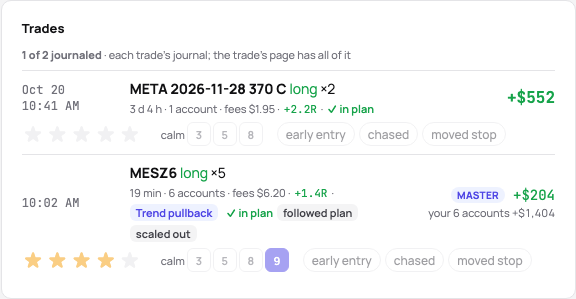
The day’s trades are journaled in their rows, the morning’s review on one page: each row has the stars, the calm on a short scale (3, 5 or 8; the trade’s page has every step), the mistakes you use most as chips, one click on or off (+ mistake types a new one, a chip from then on), and a line of notes; each saves as you set it. The card counts the trades journaled (2 of 3 journaled), and Mark the day reviewed marks every trade of the day reviewed, with Undo. The trades come in the order they were made; notes longer than a line stay on the trade’s page, which keeps the whole journal, and a day of more than ten trades shows the ones not journaled yet first. A trade checked against its strategy’s parameters or your rules says in its row whether it kept them: ✓ in plan, or off plan with what it broke (a strategy’s parameters).
A closed trade belongs to the trading day it closed on; an open one to the day it opened. The dashboard’s filter bar (Filters) stands on the calendar too, without the Dates chip: pick a market, an account type or one or more roots (ES, MNQ, AAPL…) from what you have traded, and the month shows those trades alone, its summary counting them against the month’s total (“8 trades (of 20) · filtered”). The week cells and the month line show the share of winning trades next to the result. The day and week pages carry the same bar, say “5 trades (of 8) · filtered” when it cuts, and link to the dashboard of the same days; their ‹ › arrows take ← → from the keyboard, and the note saves with ⌘S as well as when you leave the field.
Share on the day’s and the week’s page, and next to the month in the calendar, makes a public link to the period’s result (sharing).
Economic events
Section titled “Economic events”The calendar’s days and a day’s page show the scheduled US economic releases beside your trades. High impact: the jobs report (nonfarm payrolls), CPI, PCE, the GDP’s advance estimate, retail sales, the ISM manufacturing and services PMIs, the FOMC’s rate decision with the Fed chair’s press conference, the Fed chair’s speeches and every testimony of a Fed governor before Congress. Medium: PPI, JOLTS, the employment cost index, the GDP’s later estimates, the trade balance, durable goods, housing starts, new home sales, the FOMC’s minutes, the other Fed governors’ speeches (the vice chairs’ too) and the weekly jobless claims. Low: a few smaller ones. They come from the official US calendars of the Bureau of Labor Statistics, the Bureau of Economic Analysis, the Census Bureau and the Federal Reserve (its FOMC calendar and the calendar of its Board members’ speeches and testimonies), which TakeJournal’s server reads every morning; the claims come every Thursday at 8:30 New York time, a day earlier when the Thursday is a holiday, and the ISM PMIs at 10:00 New York time on ISM’s first business day of a month (manufacturing) and its third (services). A speech or a testimony names who speaks; the regional Reserve Banks’ presidents are not included (they have no common official calendar). The impact is TakeJournal’s own rating, made to match the “red news” the prop firms’ rules name. Forecasts and the figures released are not shown, nor other countries’ releases yet.
Events next to $ / R chooses what the days show: the high-impact releases (the default), high and medium, all, or none. A day shows a dot of its highest impact and the short names of those releases, “+2” for the lower ones; hovering lists them all with their times. The choice stays in the address and your browser remembers it. On a phone a day shows the dot alone.
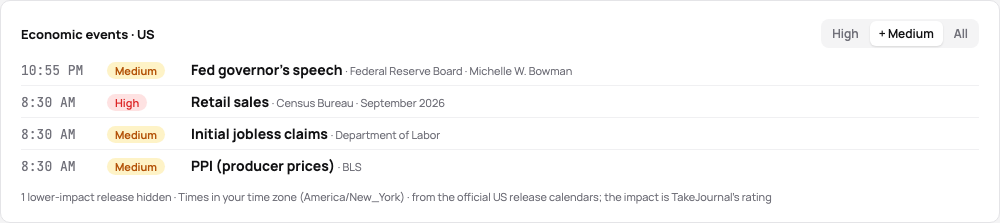
A day’s page lists its releases in a card under the day’s result: the time in your profile’s time zone, the impact, the release, the agency and the period it covers. High, + Medium and All choose the impact, and the card counts the releases it hides. A day without a release has no card. Every release falls on the trading day it is announced on; one after 18:00 New York time (a Fed governor speaking in Asia) on the next one, as the futures session does; every plan has them, Free included.
Trades through the news
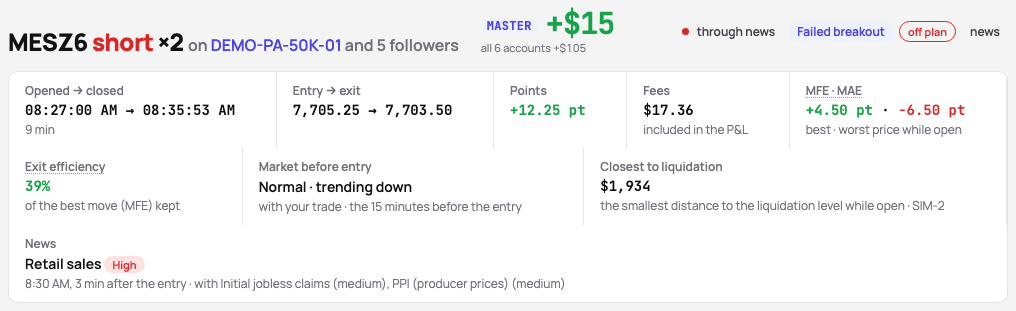
Section titled “Trades through the news”A trade that was open when a release came out says so. In the day’s rows and in the trades list a high-impact release inside a trade marks its row with a red dot, the release’s short name and its time. On the trade’s page the hero says through news, or 2 min after news when the trade was entered up to five minutes after a high-impact release; the News line names the releases inside the trade and up to five minutes before its entry, each with its impact and its time against the entry, the lower ones of the same moment after “with”. An open trade counts until now.
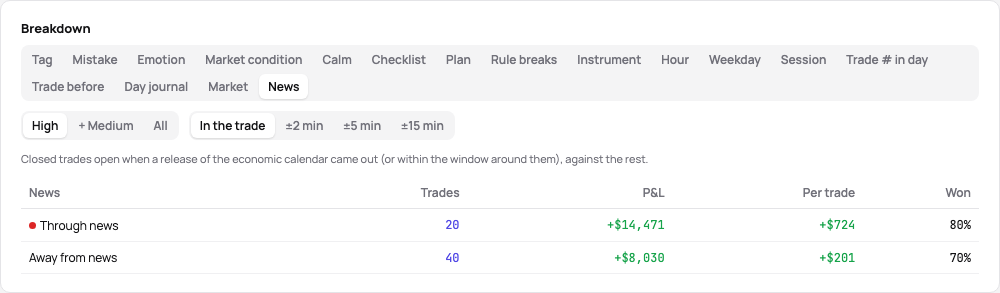
The News filter (under + Add filter) keeps the trades Through the news or Away from the news. High, + Medium and All choose the releases that count, and the window widens each trade by ±2 min, ±5 min or ±15 min, as a firm’s “no trades around red news” rule does. The filter stays in the address like every chip, so a saved view keeps it. The News tab of the statistics’ Breakdown sets the closed trades through the news against the rest: the trades, the P&L, the result per trade and the win rate, with the same impact and window; a count opens those trades. The marks and the filter are on every plan, Free included; the tab comes with the breakdowns.
Your day
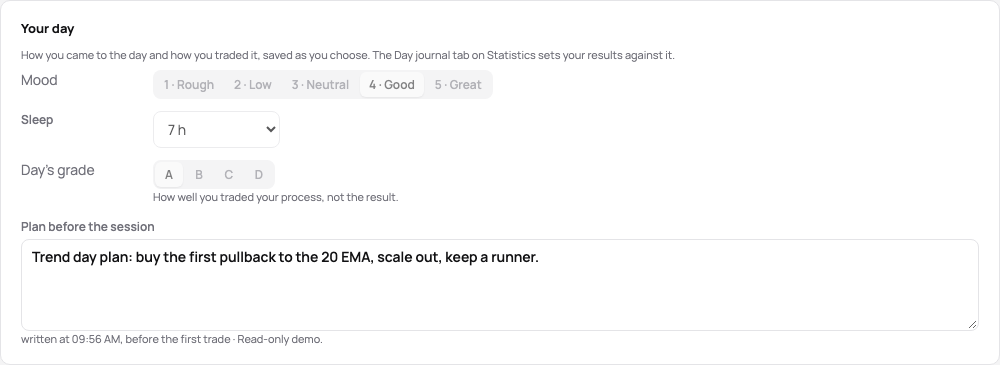
Section titled “Your day”A day’s page starts with Your day: how you came to the day and how you traded it.
- Mood — from 1 · Rough to 5 · Great.
- Sleep — the hours you slept, from less than 5 to 9 or more.
- Day’s grade — A to D for how well you traded your process, not the result: A followed the plan to the letter, D broke it.
- Plan before the session — what you will trade and what not: levels, setups, news, the most you will lose. The page says when you wrote it and whether that was before the day’s first trade.
The mood, the sleep and the grade save as you choose them (a click on the chosen one clears it), the plan when you leave its field or press ⌘S. They belong to you, not to one account, the same in real and practice trading.
The dashboard’s Day journal tab sets your results against them: the trades by the mood, the sleep and the grade of their day, and by whether the plan came before the first trade, after it or not at all; the cross tab crosses them with a strategy, a session or anything else.
Screenshots of the day
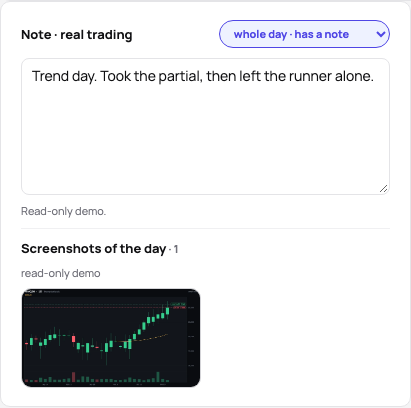
Section titled “Screenshots of the day”Under the day’s note, Screenshots of the day keeps the images that belong to the day rather than to a trade: the morning’s levels, the plan drawn on a chart, the news. Paste them (⌘V anywhere on the day’s page, in the note too), drop them on the block or choose files. They are stored shrunk like a trade’s, as many on a day as the plan includes on a trade (Trader 5, Pro 20, Fleet 50), and count in the plan’s storage. A click on a thumbnail shows the image full size; the × on it or Delete under the full-size view deletes it at once, with Undo for ten seconds. They belong to you and the day, not to one account or strategy, the same in real and practice trading: deleting an account or a connection keeps them, starting over deletes them.
Dropped on any other page, a screenshot that no trade fits (taken before the day’s first trade, on a day without trades, or when every trade of the day has its screenshot) goes to Day’s notes, which every row of the dialog offers first. One whose name has no time goes by the file’s time, and another day… picks its day.
Related
Section titled “Related”The journal of a trade · The dashboard · AI reviews · Share a day, a week or a month
The AI answers from our guide: how TakeJournal works, imports, prop accounts, the plans.
Your question goes to Anthropic to be answered. We keep the conversation for 30 days to improve the guide, then delete it. No investment advice. Privacy policy