Any broker's export: a statement mapped by AI
Every plan; Free imports one file a day. One AI answer per new format or PDF statement (Trader 100 a month, Pro 250, Fleet 600, the 7-day trial 10 in all, shared with the AI chat); a format mapped once imports for free, and a PDF costs one answer however many pages it has. Free has no AI answers: a new format is mapped by its column names.
Every platform exports trades differently. Instead of a parser for each, TakeJournal reads the first rows of an unknown file, lets the AI propose which column is the time, the symbol, the side, the quantity, the price, the fees, the account and the ids, applies that mapping to the whole file on the server and shows you the result before a single fill is written. Known exports (Bookmap, R|Trader Pro, Tradovate, NinjaTrader, the crypto exchanges’ trade histories of Kraken, Binance and Coinbase, MetaTrader 4 statements, MetaTrader 5 reports and cTrader’s history) still import without the AI; so does every format you have mapped before. Forex statements: see MetaTrader and cTrader. Crypto pairs and funding files: see crypto.
A statement of deposits and withdrawals (a broker’s cash history, an exchange’s ledger) is mapped the same way, one row being a movement of money: its amount (positive in, negative out), the currency, a fee and the type. The movements go into the account’s ledger, where they move its balance (the ledger); one you typed in by hand is taken over rather than doubled, and reverting the import takes them away again.
Import a new format
Section titled “Import a new format”Accounts → the account → Import trades → choose the file. A CSV, an XLSX workbook, an HTML page (MetaTrader 4 statements and MetaTrader 5 reports are one) or a PDF statement. The dialog says it in one line: a known format imports at once, a new one is mapped and you check its fills before anything is written. Under the file field are the formats you have mapped, each with Forget; a forgotten mapping comes back with Undo in the message.
- A new format. The dialog shows the file’s columns and a few rows. Nothing has left the server yet. Choose Map with AI (one credit) or Map by the column names (no AI: the usual names such as Time, Symbol, Side, Quantity, Price, Commission are recognised; anything else you set yourself).
- The preview. The first fills as the mapping reads them, the accounts the file names, the instruments recognised (a futures root, a stock or option you have traded here) and the first trades as they would be built, with their result. A symbol TakeJournal does not know but that reads like a ticker comes with the question whether it is a stock: tick it and its trades are valued in the account’s currency. Rows that cannot be read are listed with their line and the reason; they are left out, never guessed.
- The mapping. Under the preview: the column of each role, the fee columns as boxes (every one ticked is summed), the decimal separator, the order of day and month, the time zone (yours for times without one, the file’s own, or a fixed one chosen from the list, such as the broker’s server zone), the words the side column uses, and a filter for files that mix fills with orders or balance rows (“Keep only rows where … is one of …”, the sample’s values offered). Every field says under it what it wants. Change anything and the preview follows. When a column the import needs was not recognised (a price headed “Rate”, say), the preview says which one, and you choose it here. Esc, Close and Another file ask first once you have corrected the mapping or answered a question, so a stray key does not throw the work (or the credit) away.
- Import. The button in the footer names what goes in, “Import 40 fills” (or “Import 40 fills of APEX-123” when the file holds several accounts). The fills go in like every import: with a report under Imports on the account’s page, a per-day reconciliation, and a Revert that takes the whole import back for 30 days; the done step says so and offers Show the imported trades, the Trades page filtered to the account and the days imported. The mapping is saved under the format’s name: the next file of the same format (the same header) is recognised, applied and previewed without a credit.
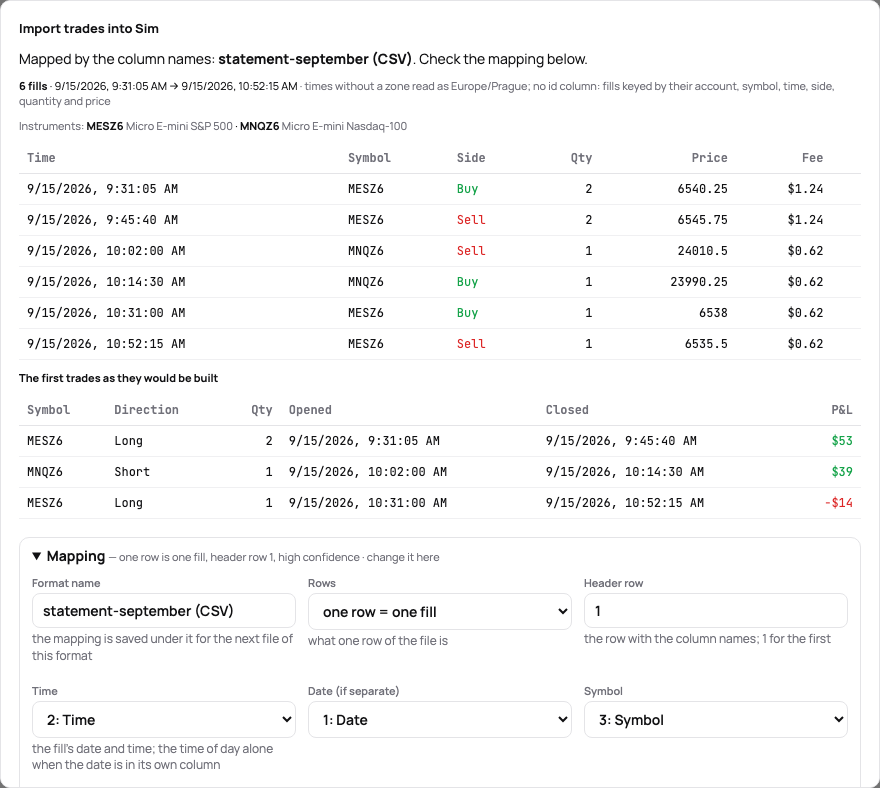
A file with several accounts asks which one to take, as every import does. Importing the same file again adds nothing: fills are keyed by the file’s fill id, else by the order id (the rows of one order become one fill), else by their content.
Paste a table
Section titled “Paste a table”When a broker or a prop firm’s dashboard shows your trades as a table on screen but has no export, or hides it: select the table with its header row, copy it, and in Import trades choose Paste a table and paste it into the box. A table copied from a web page, Google Sheets or Excel keeps its columns; text separated by tabs, commas, semicolons or columns lined up with spaces is read too. Under the box TakeJournal says how many rows and columns it read, the first row taken as the header. Import the table then takes a file’s way: a known layout imports at once, a new one is mapped and you check its fills first, and the mapping is kept for the next paste with the same columns. The account’s imports list it as Pasted table, reverted like any file; on Free it counts as the day’s one file.
The file’s account number
Section titled “The file’s account number”Import a file in the sidebar (also on Start here, the Accounts and the Connections page), or a file dropped on any page, reads the file before any account exists: what it holds (the format, the fills and trades, the days, the instruments) and, for each account number in it, where it goes — into the manual account that imports that number already (Import into …), or into a new one: the number as its name, the firm its number names (TPT0042719 says Take Profit Trader) and the product to confirm, or not a prop account: my own. Create the account and import 14 fills makes the account, opened on the day of its first fill, and imports the file. A file TakeJournal cannot read by itself goes into a manual account made first, where its columns are mapped. The result stays in the dialog: the new fills with a link to them and Take this import back; below, the recent imports of every account, each with Take back for 30 days. A number an account keeps goes there (Another account sends it elsewhere).
The first file imported into a manual account names it: the account keeps the file’s account number (TPT0042719 in a Tradovate export), shows it next to Manual account on its page, and its import dialog says which number it imports. A later file of another account is not imported until you choose, before anything is written:
- Import into the account that imports that number already, when the journal has one;
- Create an account for the number: a manual account named by it, of the type you choose, counted in your plan’s account limit (refused when the plan is full); the file goes in there;
- Import into this account anyway: the account keeps the number of its first file, and the number of another account stays that account’s.
A file of several accounts (a known format such as a Bookmap orders log or a NinjaTrader export) lists them, each with where it goes. The accounts the journal knows go into their accounts. For each other number you choose this account (once), a new account named by the number, of the type you choose, or nowhere. Import n accounts imports them one after the other and lists what each received, with a link to each account. A statement mapped by its columns takes one account of the file, as before.
A file without an account column names nothing, and an import reverted that leaves the account without fills forgets the number.
What the AI sees
Section titled “What the AI sees”The file’s name, the column names and the first twenty rows, with account numbers, other long identifiers and e-mail
addresses replaced by placeholders (ID-dkfjal) before the sample leaves the server; your time zone. Prices, sizes,
dates and symbols stay as they are. It answers with the mapping only; the rest of the file is read on the server by
that mapping. For a PDF, the text of the pages goes with the same placeholders, and the AI lists the fills it finds;
they are checked here like any file’s rows. A statement’s header may show your name and address, which go with the
text as printed. The AI provider does not use these requests to train its models and does not keep them after answering
(privacy policy). Without an API key on the instance, formats are mapped by their column names and
nothing leaves the server.
AI answers
Section titled “AI answers”Your profile, the import dialog and the chat show the same line, “AI answers: 12 of 100 used this month, renew 1 November”; during the trial, the trial’s 10, which do not renew. An AI answer pays for one new import format, one PDF statement whatever its pages, or one question about your journal; the guide’s answers and the AI reviews are free. Over the limit, the import goes on: a new format is mapped by its column names (check it in the preview), formats mapped before keep importing, and a PDF waits for the next month or for a CSV or XLSX export of the same statement, which maps without the AI.
When a column is missing
Section titled “When a column is missing”A statement without the time of day (a daily summary) or without a price cannot become fills yet (fractional quantities – coins, forex lots, fractions of a share – come in as they are); the preview says so row by row. An unknown instrument imports, and its trades show points until it is known: a ticker is declared a stock in the preview, a futures root is added by an administrator. A statement that starts in the middle of a position (its opening fill is in an earlier statement) builds that position’s close as a trade of its own; import the earlier statement too.
Related
Section titled “Related”Import and sync reports, reconciliation · NinjaTrader 8 · Tradovate and NinjaTrader web · R|Trader Pro and Bookmap · Trades by hand, fills, deleting
The AI answers from our guide: how TakeJournal works, imports, prop accounts, the plans.
Your question goes to Anthropic to be answered. We keep the conversation for 30 days to improve the guide, then delete it. No investment advice. Privacy policy