The dashboard and Statistics
The summary on every plan; the breakdowns, the what-if scenarios and the equity chart on Trader and above.
Filters
Section titled “Filters”The filters sit under the title as a row of chips and apply to everything on the page. The same bar stands on Statistics, the calendar, the trades list and the day and week pages, and the choice follows you between them; a trade’s page says what its ‹ › arrows move within. Every figure computed under a filter says so: “41 trades (of 132) · filtered”.
The ? at the bar’s start, beside the Show switch when you have one, explains the switch and how the figures are counted: the currency, the forex day and the crypto day, with a link to change them in the Profile. It opens when you click it; Got it or the ? closes it. The dashboard keeps one short line of it under the bar: the currency, that each market has its own trading day, and the link to the Profile.
- Show — Master only shows each decision once, with the master’s result and the money of all its accounts next to it, under a filter of several accounts too (the master’s trade counts even when its account is outside the filter, and the row says master before the figure); Master + followers shows the copy group as a whole: each decision as a block, the master’s trade first and the followers’ trades beneath it, every account’s trade counted, the accounts outside the copier left out; All accounts counts every account’s trade, flat by time. The switch appears once you have a master or a follower account; with one account chosen it reads “this account’s trades”: that account’s own trades, master and followers ignored.
- View — a named set of filters applied with one click, first in the bar. The ready-made views come from your
accounts without any setup: one per firm with two or more accounts (“Apex · 6 accounts”), one per account type in
use (“Evaluations”, “Funded accounts”), Real results while you have a practice account, and one per broker
connection when there are several. My views are the ones you save: Save as view…, in the bar next to Clear
all once a chip is set and in the View chip, names the current chips (Enter saves); a name one of your views has
asks first, Replace it (the view keeps its place and its star, and the message’s Undo puts its chips back) or
Save as a new one. A view holds every chip but the dates unless you tick include the dates, and it never changes
the period of a page or the Show switch. The chip reads “View: Apex funded”; once you change a chip it reads “Apex
funded · edited” with Save, Save as new and Back to view. Manage views renames, reorders and deletes
them (a deletion can be undone from the message) and stars the one your pages open with on a new tab. The view’s
key goes into the address (
?view=apex-funded) and its name into the heading of the dashboard and the calendar. Views live on the server, so your phone has them too. - Account type — a multiple choice of Evaluation, Funded, Live, Personal and Practice, each explained in the list, with the presets Real results (all but practice) and Prop accounts; nothing ticked means every type. Practice alone shows the notes of your practice accounts on the calendar and the day and week pages.
- Firm — a firm’s accounts as a set, with one click; the Account chip then shows them ticked. Behind + Add filter until set, like Market, Checklist and Tags.
- Account — a checkbox list grouped by firm, then connection, with a box per group (“all Apex”); ended accounts come last with the day they ended. One account chosen is that account alone, master and followers ignored; several count each decision with the master’s result, and the rows say whose result the big figure is (“master +$640 · your 2 accounts +$1,280”). The Equity card shows one account’s balance and liquidation level only with exactly one account chosen.
- Dates — Today, Yesterday, This week, Last week, This month, Last month, Last 30 days, This year or Any time, or two dates of your own; trading days, as the calendar counts them. Each market takes a preset by its own day (a future by its session, a stock by New York’s day, crypto by your zone’s), so on a Sunday evening Today holds both Monday’s future and the stock closed a minute ago. A range that reaches today also takes every trade still open, however long ago it opened, as the ticker counts them. Not on the calendar and the day and week pages, whose period is their own. A preset follows the trading day, in a link and in a starred view too: after a reload Last 30 days still ends on the day under way, while two dates of your own stay as they are.
- Strategy, and behind + Add filter until you set them: Market, Checklist, Tags, the contract roots and the tags to leave out. The bar keeps the frequent chips in sight; a set one stays on it with its value, and its × clears it and puts it back behind + Add filter.
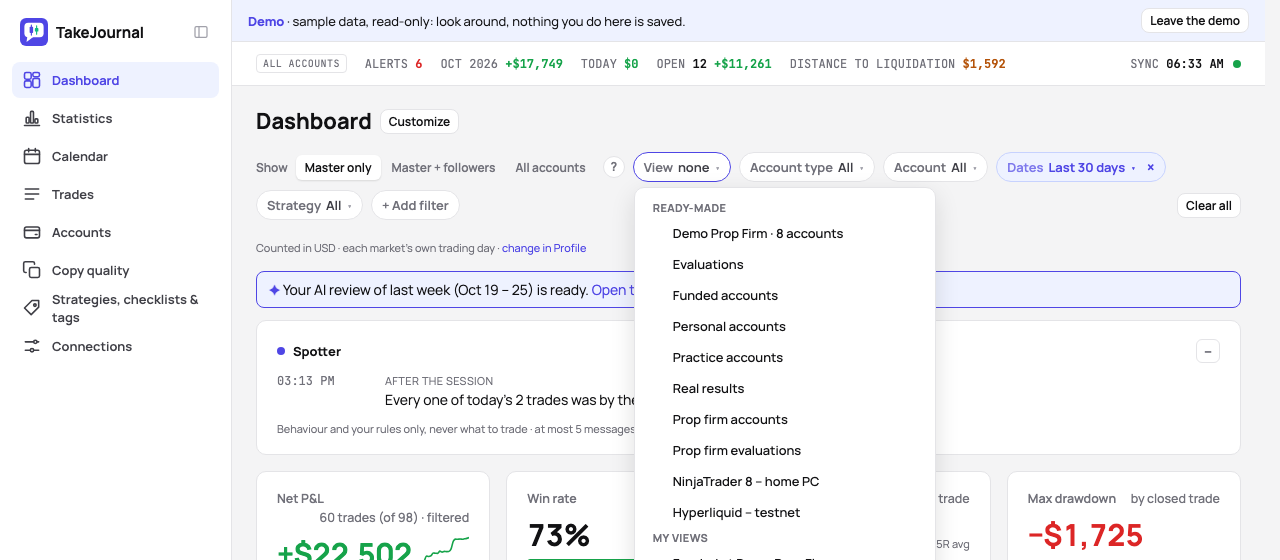
A set filter is highlighted and clears with its ×; the View chip’s × clears the view’s chips with it and keeps a chip
you added beside the view. Clear all clears every chip and the view and keeps the Show switch. The filters live in
the page’s address, so a reload, the Back button and a pasted link show the same page, and a page opened without them
takes the tab’s last choice. A new tab starts at Last 30 days, the period the Equity and Daily P&L charts show, so
the figures and the charts count the same days (Any time is one click away), or at the view you starred. From the
keyboard f reaches the bar, ← → move between the chips, Enter opens one and Esc closes it. On a phone the set chips
scroll in one row and the Filters button opens them all as a sheet. A click on a strategy in the By strategy card,
or on a tag or an instrument in the Breakdown, adds its chip. When nothing matches, the page says which filters cut the
trades and offers Clear filters.
The Checklist filter answers “how do I do when I trade by the plan”: every rule followed, at most so many rules broken, at least a share of the rules followed, or the checklist not answered. With it every figure on the page, the equity, the calendar, the trades list and the CSV export read as if you had taken only those trades. A yes/no rule counts as followed on yes, a grade at 7 and up; the broken rules are counted among the answered ones, and trades of strategies without a checklist stay out.
The dashboard shows how you are doing; Statistics, right below it in the navigation (g i), shows why. Cards
side by side share their top and bottom edges, the shorter side stretching to the taller one and a chart growing with
its card; on a phone they stack.
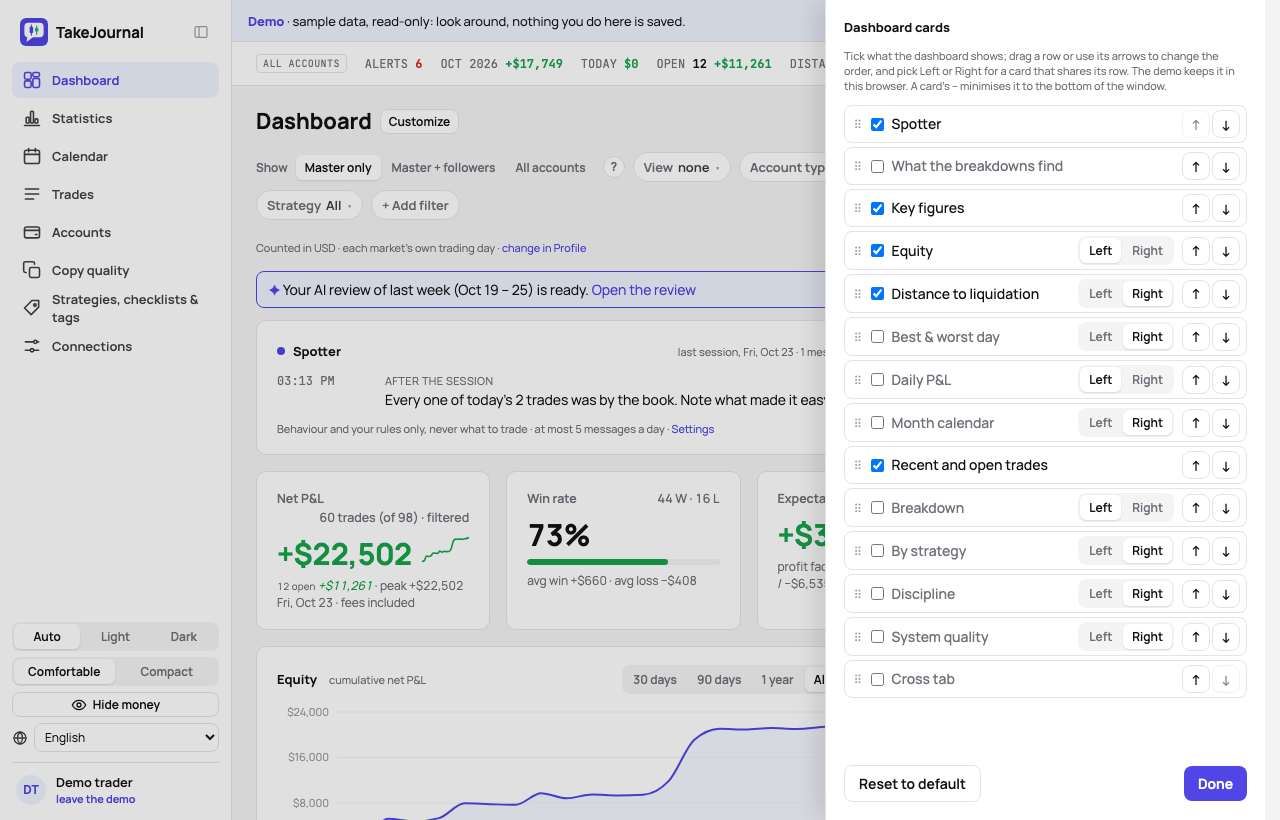
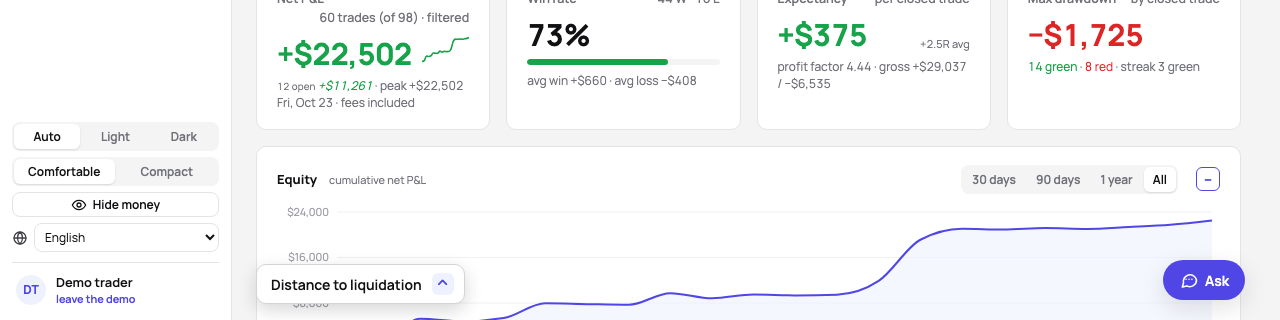
Customize, next to the title, lists the dashboard’s cards: tick the ones it shows, Statistics’ cards included, and drag a row or use its arrows to change the order; the rows keep their aligned edges whatever the order. The layout is saved for your account, so another browser and the phone show the same; Reset to default brings the default back, with Undo. A card’s – minimises it: the card travels down into a small rectangle at the bottom left of the window, and a click on the rectangle puts it back in its place (with the system’s reduced motion nothing travels, the rectangle flashes).
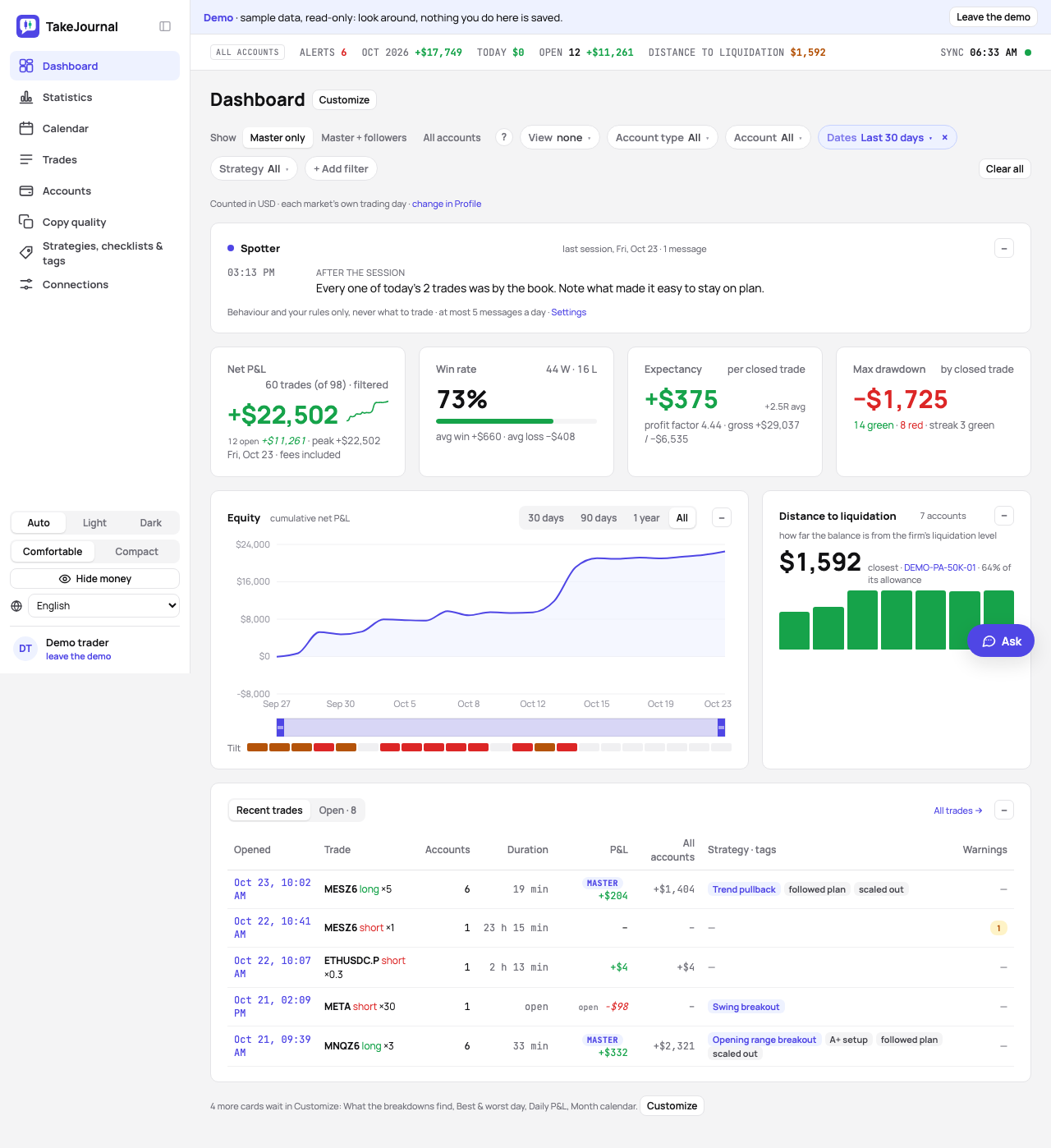
A new account, and the demo, start with a lighter dashboard: Spotter, the four figures, the equity beside the distance to liquidation, and the recent trades. What the breakdowns find, Best & worst day, Daily P&L and the Month calendar wait one tick away in Customize; until you change the layout, a line under the cards names them, with a button that opens it. A layout you saved stays as it is.
A card that shares its row — the equity, the daily results and the narrow cards — goes Left or Right in Customize: the cards next to each other in the list stand in two columns, each as wide as its widest card, and cards that all chose one side stand side by side. An account’s page lays out its cards the same way (Accounts).
- What the breakdowns find — up to three cards at the head state the strongest findings of the breakdowns under the page’s filter, what costs money first: your worst hour (“17:00 gave back −$550 over 24 trades, while the rest made +$2,550”), a weak weekday or session, your mistakes, the trade after a loss, then what pays; each opens its tab of the breakdown on Statistics. A finding shows only when it means something: a bucket of at least 8 trades (5% of them on a long history), a loss of at least a tenth of what the trades made, a gain of at least 40% of the net with a win rate ten points above the whole. None is better than a weak one.
- The four figures — Net P&L with its curve, the peak, the total and average R over the trades with a known risk and the open trades at their latest price; Win rate with the average win and loss; Expectancy per closed trade with the profit factor; Max drawdown, the largest fall of the running net result from its peak, trade by trade, with the green and red days and the current streak.
- Equity — the cumulative net P&L of the filtered trades or, with one account chosen, that account’s balance with its liquidation level; Daily P&L below it. Both charts draw the last 30 days up to the latest trading day, or the whole period when the Dates filter chose one. 30 days, 90 days, 1 year and All on either card change both, and so does the strip under each chart: drag its ends, or move a focused end with the arrow keys, to zoom to any days (“46 of 160 trading days”). The range changes only what the charts draw; the figures above count every trade the filters let through. The axis names the month and the year (Jul ’25) once the days drawn span more than half a year.
- Distance to liquidation — every active account as a bar, the closest first, each bar the share of the account’s own drawdown allowance; Best & worst day; the month, each day tinted by its result and a link to its page. Days are trading days: a futures day starts at 18:00 New York time the evening before.
- Recent trades, a row opening the trade, and the open ones on the card’s second tab, whatever day they opened.
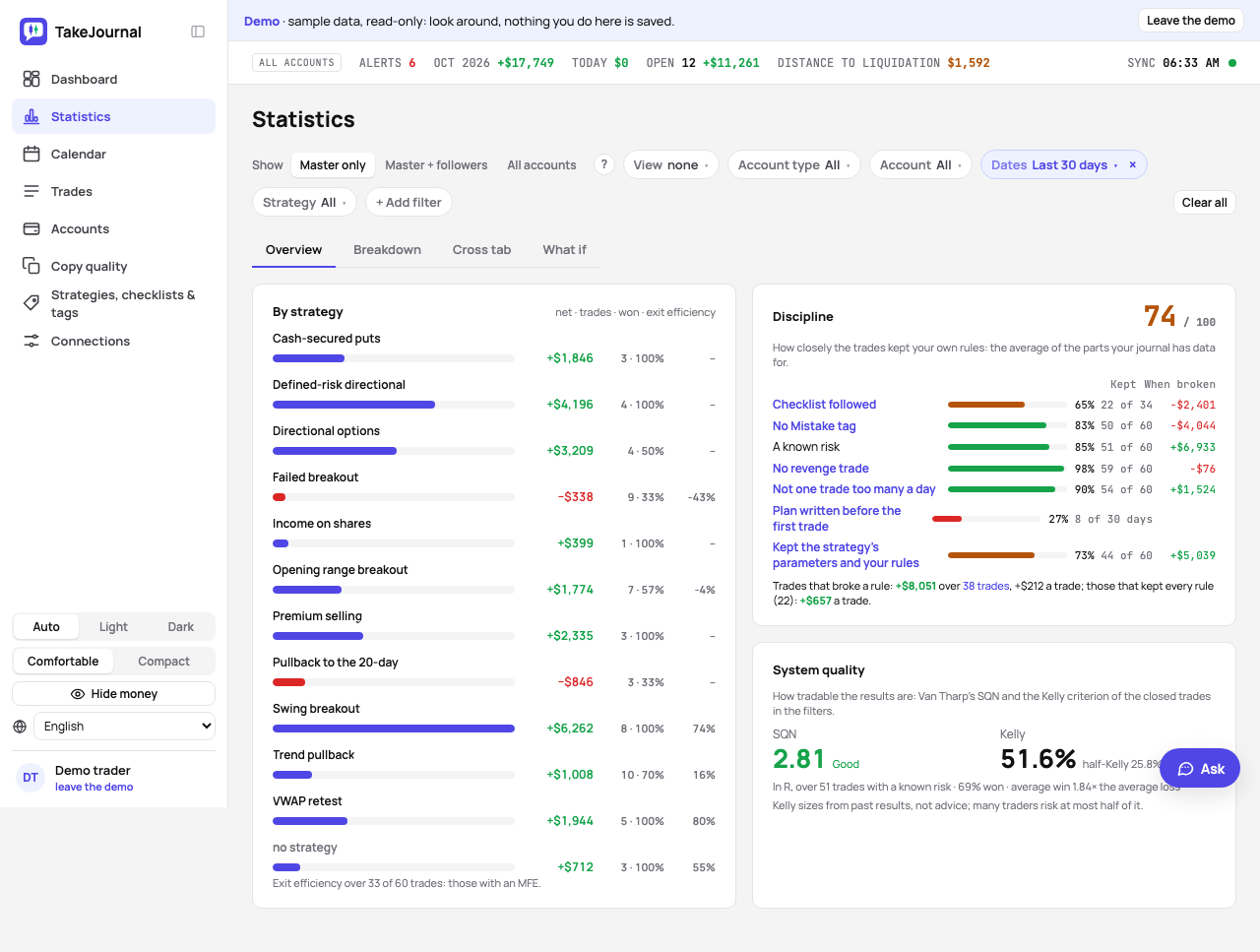
Statistics has four tabs, each with its own address: Overview sets the strategies beside the discipline score and the system quality, half the width each; Breakdown and Cross tab show those cards alone, across the width; What if plays scenarios on the same trades. The filter bar stands above the tabs and stays when you switch; a plan without the breakdowns sees there what the page holds and the plan that has it.
-
Breakdown — one card with tabs: every tag with its trades, P&L and win rate; each tag category with the trades without one of its tags; the calm in buckets of two; the checklist, Followed vs broken (per strategy the trades that followed every rule, broke one, broke two or more or left the checklist unanswered, each with its P&L, win rate, expectancy and average R, the trades without a checklist last: the same definition as the Checklist filter) and Per rule (each strategy’s rules with how often they were followed, or the average grade, the result when followed and when broken and the strategy’s score); instrument, hour and weekday. On the Tag and Mistake tabs the card states the cost of mistakes: the P&L of the trades with a Mistake tag, and the result without them. With no Mistake tag in range it names the tags of the range that have no category, which count in no category’s figures, with a link to set their category. The hour breakdown counts the hour of the day in the time zone of your profile.
-
Session, Trade # in day and Trade before — three more tabs of the Breakdown, worked out from the trades themselves. Session by the entry time in New York: Asia 18:00–03:00, London 03:00–09:30, then the New York morning to 12:00, midday to 14:00 and afternoon. Trade # in day: the trade’s number in its trading day, the fourth and later together, so you see whether the later trades of a day pay. Trade before: the result you knew when you entered, the last trade of the day closed before the entry: none yet, a win or flat, a loss, or a loss at most 15 minutes before, the revenge trades. The number in the day and the trade before count among the trades the filters keep.
-
Day journal — one more tab: the trades by what you wrote on their day’s page, the mood, the sleep, the day’s grade and whether the plan came before the first trade (your day).
-
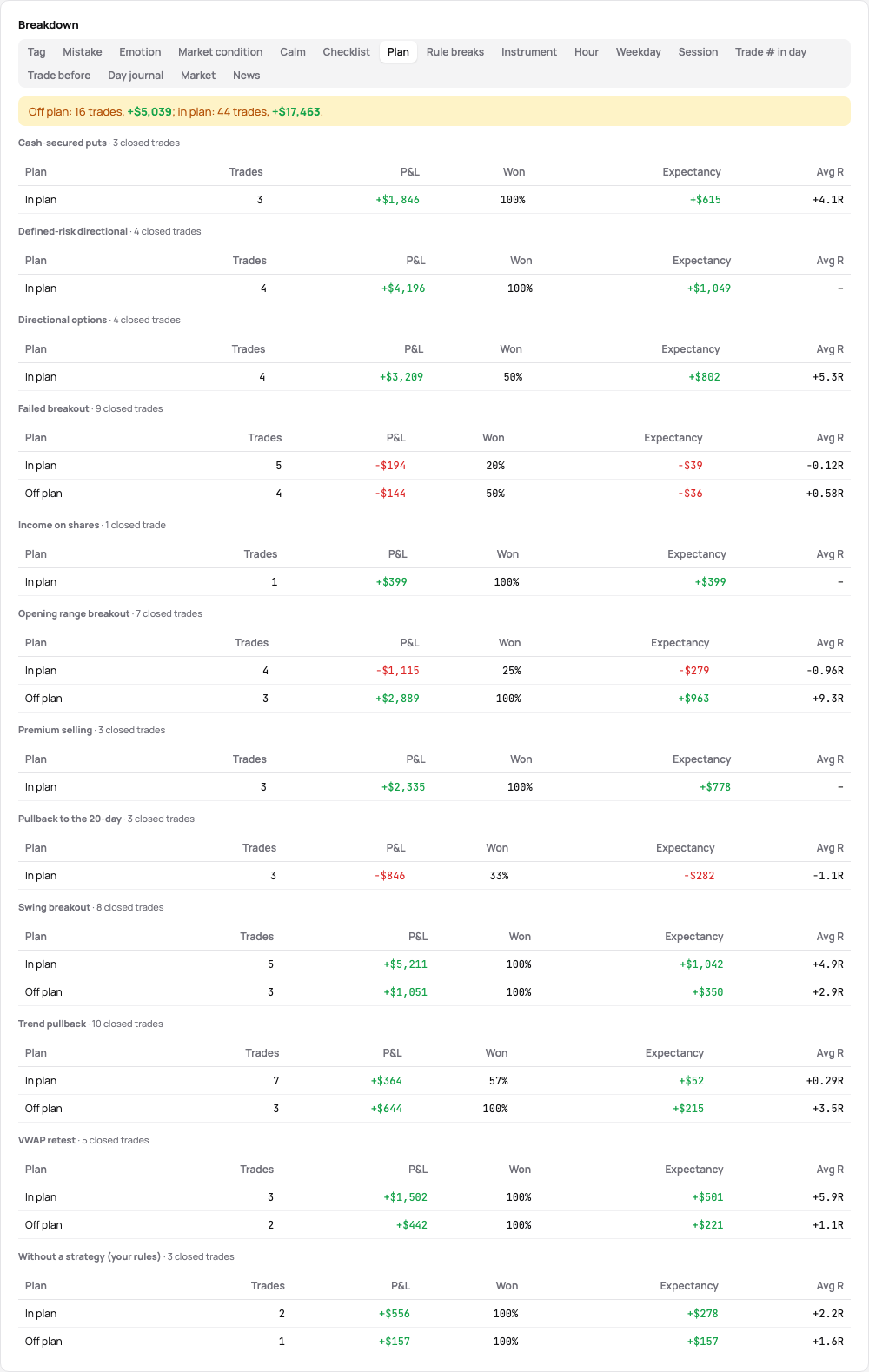
Plan — one more tab: per strategy the closed trades in plan and off plan, checked against the strategy’s parameters and your rules, each with its P&L, win rate, expectancy and average R, the trades without a strategy last; above them, what the off-plan trades made against the trades in plan. Trades nothing checked count in nothing.
-
Rule breaks — one more tab: for each part of the discipline score that judges a trade, the closed trades that broke it against those that kept it, with their number, P&L, result per trade and average R; the last row, Any rule, counts a trade that broke two rules once. The number of broken trades opens them on the Trades page.
-
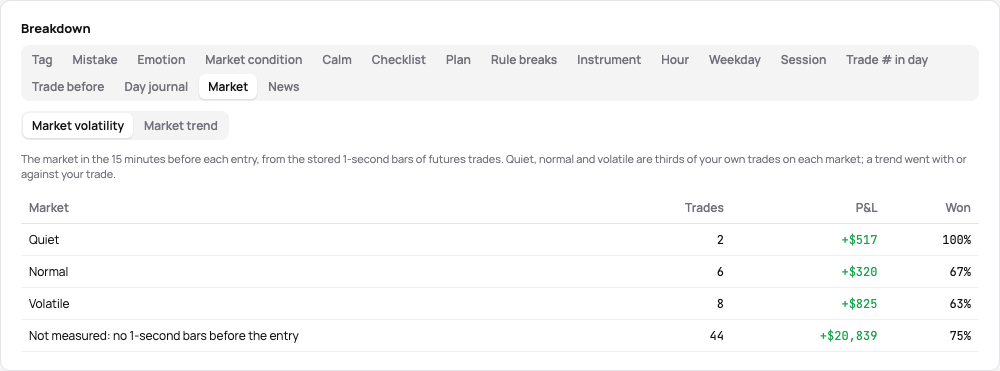
Market — one more tab: the trades by the market in the 15 minutes before their entry, its volatility or its trend (the market before the entry).
-
By strategy — each strategy’s net result, trades and win rate, with the average exit efficiency where its trades have an MFE; a click on a strategy filters both pages by it.
-
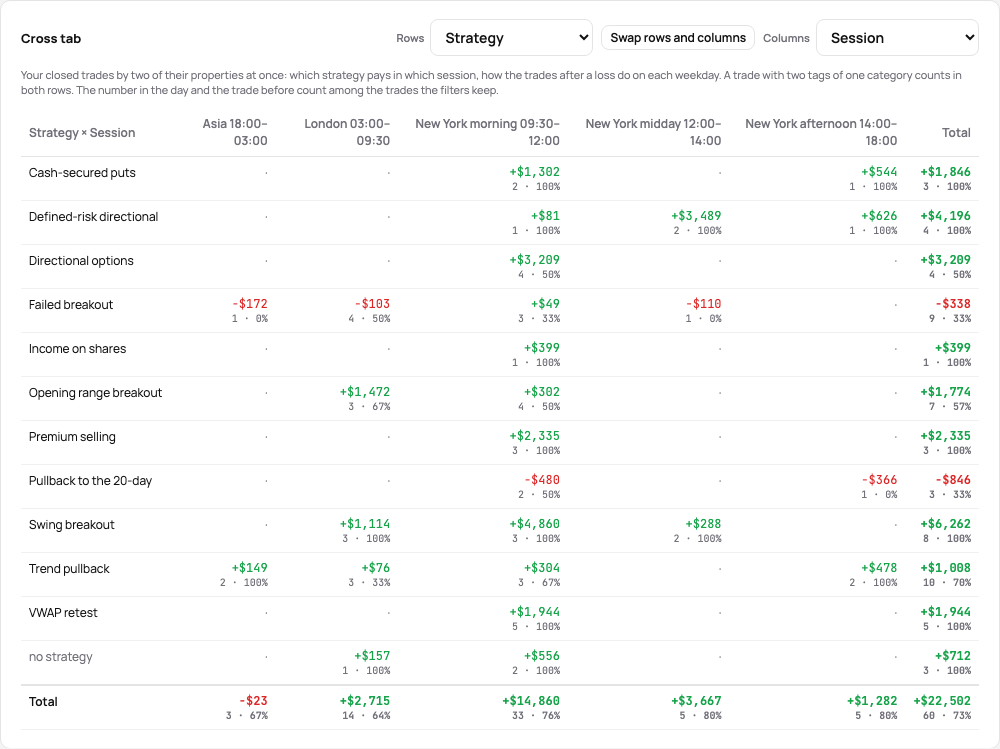
Cross tab — on a tab of its own, two of these at once. Choose the Rows and the Columns (strategy, instrument, session, weekday, hour, trade # in the day, trade before, calm, the market’s volatility or trend, or a tag category): every cell shows the P&L of the closed trades with both, their number and their win rate, with the totals at the end of each row and column, so you read which strategy pays in which session or whether the revenge trades lose on Mondays. Swap rows and columns turns it round; the choice is kept in the page’s address. A trade with two tags of one category counts in both rows and once in the totals.
Per account, the Equity card on the account’s page draws the balance and the liquidation level over time.
Accounts in one currency show it as it is; accounts in different currencies add up in the currency of your profile, every amount at the ECB’s rate of its day.
The market before the entry
Section titled “The market before the entry”From the 1-second bars stored around every futures trade, TakeJournal reads the market in the 15 whole minutes before the minute of each entry:
- Volatility — the average range of a minute in ticks: quiet, normal or volatile as the lowest, middle or highest third of your own trades on the same market, each window of the market once however many accounts traded it. A market with fewer than 6 measured trades has no thirds yet; its trades count under Too few trades on its market.
- Trend — how straight the market moved: the net move over the sum of the minutes’ moves (Kaufman’s efficiency ratio). From 0.3 the market trended and your trade went with the trend or against the trend; below, it ranged (Range).
The Market tab on Statistics breaks the results down by either, the switch kept in the page’s address; the cross tab sets them against each other, a strategy or a session; a futures trade’s page shows Market before entry, its figures in the tooltip. In the trade’s journal the Market condition row offers the market as its tag while the row is empty, for example From the bars: Volatile trend: choosing it creates the tag in that category, with Undo. Trades without these bars (stocks, options, crypto and forex, and futures without stored bars) are not measured. It comes with the chart data, on Trader and above.
Discipline
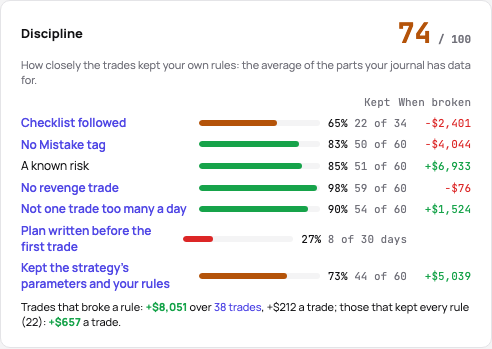
Section titled “Discipline”The Discipline card on Statistics scores how closely the trades of the filters kept your own rules, from 0 to 100: the average of the parts your journal has data for, each shown with its share and its count.
- Checklist followed — the trades that answered their strategy’s checklist and broke no rule.
- No Mistake tag — the trades without a tag of the Mistake category.
- A known risk — the trades with a planned stop or risk, or the account’s default risk per trade.
- No revenge trade — the trades not entered within 15 minutes of a losing trade.
- Not one trade too many a day — the trades up to your trades a day, else up to the third of their trading day.
- Plan written before the first trade — the trading days whose plan on your day came before their first trade.
- Kept the strategy’s parameters and your rules — the closed trades checked against their strategy’s parameters and your rules that broke none; trades nothing checked count in nothing.
A part without data (no checklist answered, no plan ever written) is left out of the score and named under it. A part opens the Breakdown tab of its trades.
What breaking the plan costs. Beside each part, under When broken, the card shows the result of the trades that broke it; a click opens those trades on the Trades page, under the same filters (the list and its CSV export). Under the parts a line sets the trades that broke any rule against those that kept every one, in total and per trade. The day’s plan judges whole days, not trades, so it has no cost of its own: the Breakdown’s Day journal tab shows the days with and without it. The Rule breaks tab of the Breakdown has every part in money, per trade and in R, and Ask TakeJournal and the AI reviews can quote it.
Under the dashboard’s equity curve the Tilt strip shows each trading day the chart draws: amber with one sign of tilt, red with two or more – a revenge trade, a Mistake tag, a checklist rule broken, one trade too many. A day opens its page.
System quality
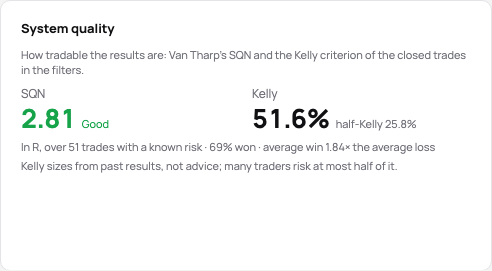
Section titled “System quality”The System quality card on Statistics (and on the dashboard when Customize adds it) rates the closed trades of the filters with two figures known from the trading literature. Both need 30 closed trades; with fewer the card says how many there are.
- SQN — Van Tharp’s System Quality Number: the average result divided by the standard deviation of the results, times the square root of the number of trades (at most 100, so that a long history does not inflate it). The card names his band: below 1.6 Poor, from 1.6 Below average, 2 Average, 2.5 Good, 3 Excellent, 5 Superb, 7 Holy grail.
- Kelly — the Kelly criterion: the share of winning trades minus the share of losing ones divided by the average win over the average loss (a flat trade counts in neither). It is the fraction of the account the past results would have risked per trade; many traders take half of it (half-Kelly, shown beside it) or less. Zero or below reads No edge to size. It is arithmetic on your past trades, not advice.
Both are counted in R when at least 30 of the trades have a known risk (those trades only), else in the P&L of all the closed trades; the line under the figures says which, with the share won and the payoff ratio behind Kelly. Ask TakeJournal reads them too.
What if
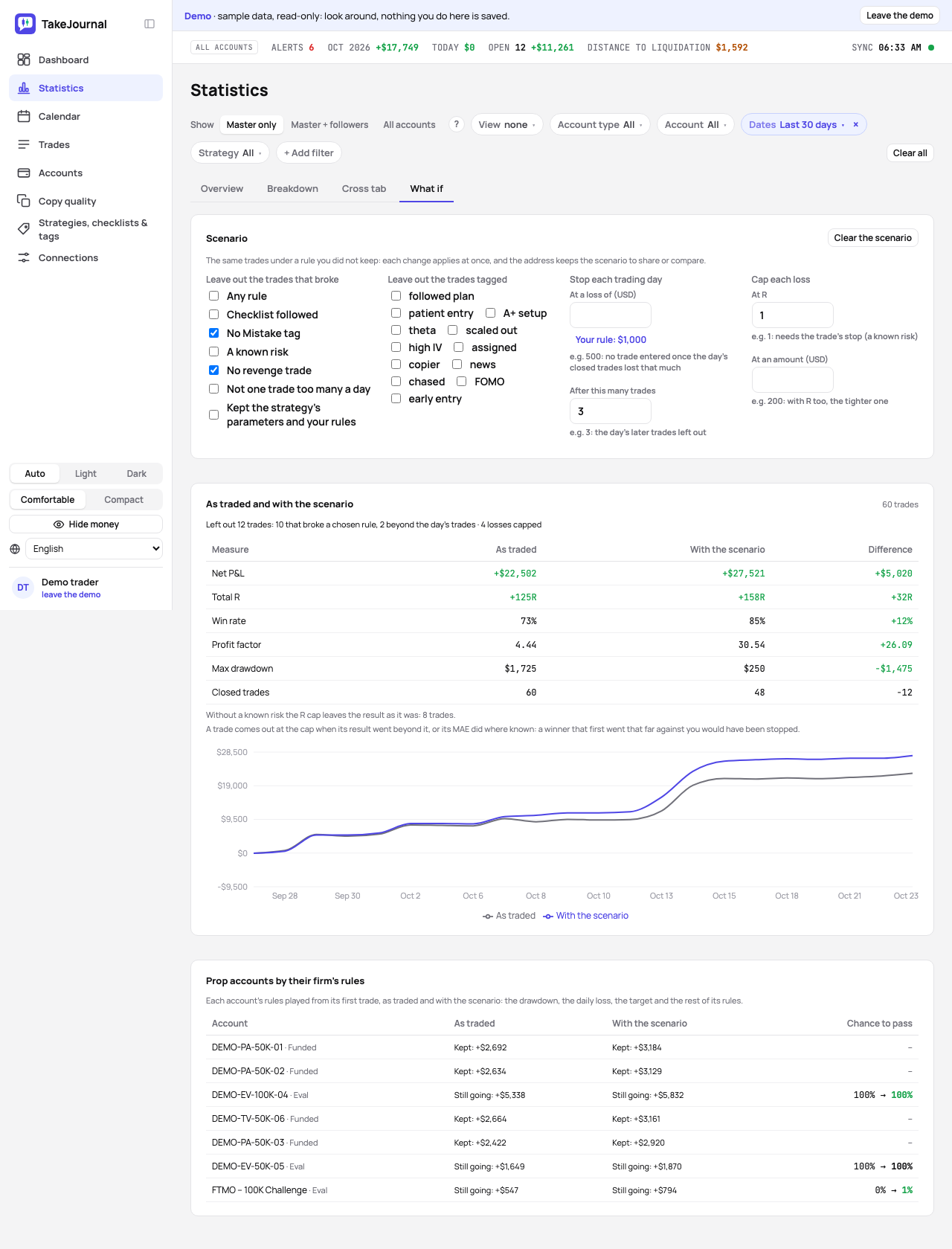
Section titled “What if”The What if tab of Statistics plays the trades of the filters again under a rule you did not keep, so you see what the rule is worth before you commit to it. Each change applies at once and goes into the page’s address, so a link shows the same scenario and two tabs compare two.
- Leave out the trades that broke a part of the discipline score (or Any rule), or the trades tagged with a tag you choose.
- Stop each trading day at a loss (no trade entered once the day’s closed trades lost that much; Your rule fills in your daily loss) or after a number of trades.
- Cap each loss at a number of R or at an amount, the tighter one when both are set. A trade comes out at the cap when its result went beyond it, or its MAE did where it is known: a winner that first went that far against you would have been stopped. The R cap needs the trade’s risk (its stop); a trade without one keeps its result, and the page says how many did.
The card then sets the figures as traded beside those of the scenario, with the difference: net P&L, total R, win rate, profit factor, max drawdown and the closed trades, and draws both cumulative results on one chart.
For each prop account among the trades, Prop accounts by their firm’s rules plays the account’s own rules from its first trade, as traded and with the scenario: the drawdown, the daily loss, the target, the minimum days and the consistency rule, as the chance to pass reads them. An evaluation shows when it passed or failed (by the drawdown or the daily loss) or that it is still going; a funded account whether it was kept. On Pro and Fleet an evaluation with at least 5 trading days of its own also shows its chance to pass both ways.
Hide money
Section titled “Hide money”Hide money at the foot of the sidebar (in More on a phone) masks every amount the app shows, on every page: the results, the balances, the charts’ axes and the amounts in a note’s preview or an AI review become “$•••”, their sign kept, so a screenshot for Discord, X or a mentor shows how a day or a month went without your account size. Points, R, the number of trades, the win rate and the shapes of the charts stay. While it is on, the ticker at the top says Money hidden; Show money next to it shows the amounts again. The choice is kept in this browser. A text you are editing and the answers of Ask TakeJournal show what was written.
Related
Section titled “Related”The AI answers from our guide: how TakeJournal works, imports, prop accounts, the plans.
Your question goes to Anthropic to be answered. We keep the conversation for 30 days to improve the guide, then delete it. No investment advice. Privacy policy