The journal of a trade
Every plan; the bulk edit and a strategy’s parameters on Trader and above, screenshots too: 5 a trade on Trader, 20 on Pro, 50 on Fleet.
The journal lives on the trade across its accounts, so one decision has one note whatever the number of accounts. The trade’s page shows the facts in a strip, the chart, and one card with tabs: Journal, Screenshots, Accounts (the followers with the audit; Legs on an option strategy) and, on an account’s own trade, Fills. The journal has its fields on the left and the notes on the right; everything saves as you go, the notes when you leave the field or press ⌘S. A save that fails says so next to the notes and in the message at the bottom, with Retry; nothing you typed is lost.
The same journal is on the page of every account’s trade: a follower’s page says Shared by the 6 accounts of this trade above it, with the screenshots on their tab and the decision’s strategy and tags in the heading. Notes that belong to one account only go on the This account’s notes tab; they stay on that page and in the CSV export, outside the statistics.
Older and newer (‹ ›, or ← → and j k on the keyboard) step through the list the page was opened from, the trades list as filtered, a day’s trades or the dashboard’s recent trades; from an account’s row they step through that account’s trades. A day’s trades are journaled in a row this way without going back to the list, or all at once on the day’s page, each in its row (the day’s page).
- Rating — one to five stars.
- Calm — how calm you were, 1 (tilted) to 10 (calm), one click; the dashboard breaks the results down by it.
- Plan — the planned stop and target as prices, or the risk in money for a trade without a price stop. The line below shows the stop’s distance, the money at risk, the planned R and the result in R. A trade without a plan takes the account’s default risk per trade as its unit. On the page of one account’s copy the line comes twice: first for all the trade’s accounts, then for this account alone, from its own entry and size, its share of a risk in money by contracts (or its own default risk) and its own result, with the R it reached. R on the dashboard →
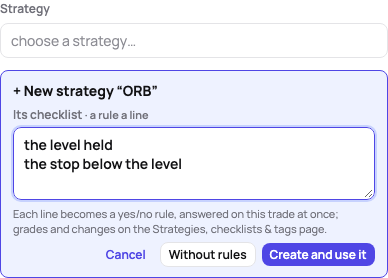
- Strategy — the one setup the trade was entered with; the Strategies, checklists & tags page holds the list with a description and a colour each. A name that is not on the list yet offers + New strategy “…”: type its checklist, a rule a line (each a yes/no rule), and Create and use it makes the strategy and shows its checklist on the trade at once; Without rules makes it bare, Esc leaves it. The message at the bottom offers Undo, which takes it off the trade and deletes it. Changing the strategy clears the checklist answers of the old one; the message offers Undo for that too. When the strategy has parameters or you have rules, the line under it says whether the trade kept them: In plan, or Off plan with each one it broke.
- Checklist — the rules of that strategy, one row each with its yes/no or a grade from 1 to 10, answered on any account’s page of the trade. Without a strategy the row says so; a strategy without rules yet links to the page where they are added. The dashboard tells how often each rule was followed, or the average grade, and what breaking it cost, and how you trade when you follow the whole plan; its Checklist filter shows every page as if you had taken only those trades (the dashboard).
- Tags, one field per category — Mistake and Emotion (built in, named in your language until you rename them) take any number of tags, Market condition one (choosing another replaces it); your own categories come after them, free tags at the end. The mistakes you use most also show as chips under the Mistake field, one click on or off. A tag typed into a category’s field is created in that category, and the message offers Undo, which takes it off the trade and deletes it again. A tag added under Tags without a category is asked about once, beside the field: Which kind is “error”? with a button per category. The answer puts the tag in that category on every trade that carries it, so its trades count in the category’s figures (a Mistake tag in the cost of mistakes), with Undo; Not now leaves it a free tag and does not ask again in this browser.
- Notes — what happened, what to keep, what to change.
- Screenshots — on their tab, paste (⌘V anywhere on the page, in the notes too) or drop images; they are stored shrunk, as many on a trade as the plan includes (Trader 5, Pro 20, Fleet 50). Pasted while another tab shows, an image brings up the Screenshots tab with the images just added and Undo; the message at the bottom says so too. A click on a thumbnail shows the image full size. Delete an image with the × on its thumbnail (it shows when the pointer is over it, always on a touch screen) or under the full-size view: it goes at once and the message offers Undo for ten seconds. Your own images can always be deleted, also on a plan without screenshots. Dropped on any other page, screenshots go to their trades: one taken during a trade to it by the time in its name (a position held from an earlier day is only offered); one taken later is offered the last trades before it, the day’s trades without a screenshot proposed in the order they were taken; Attach them all at once. Dropped anywhere on a trade’s page, they go to that trade. One that no trade fits goes to its day’s notes (screenshots of the day).
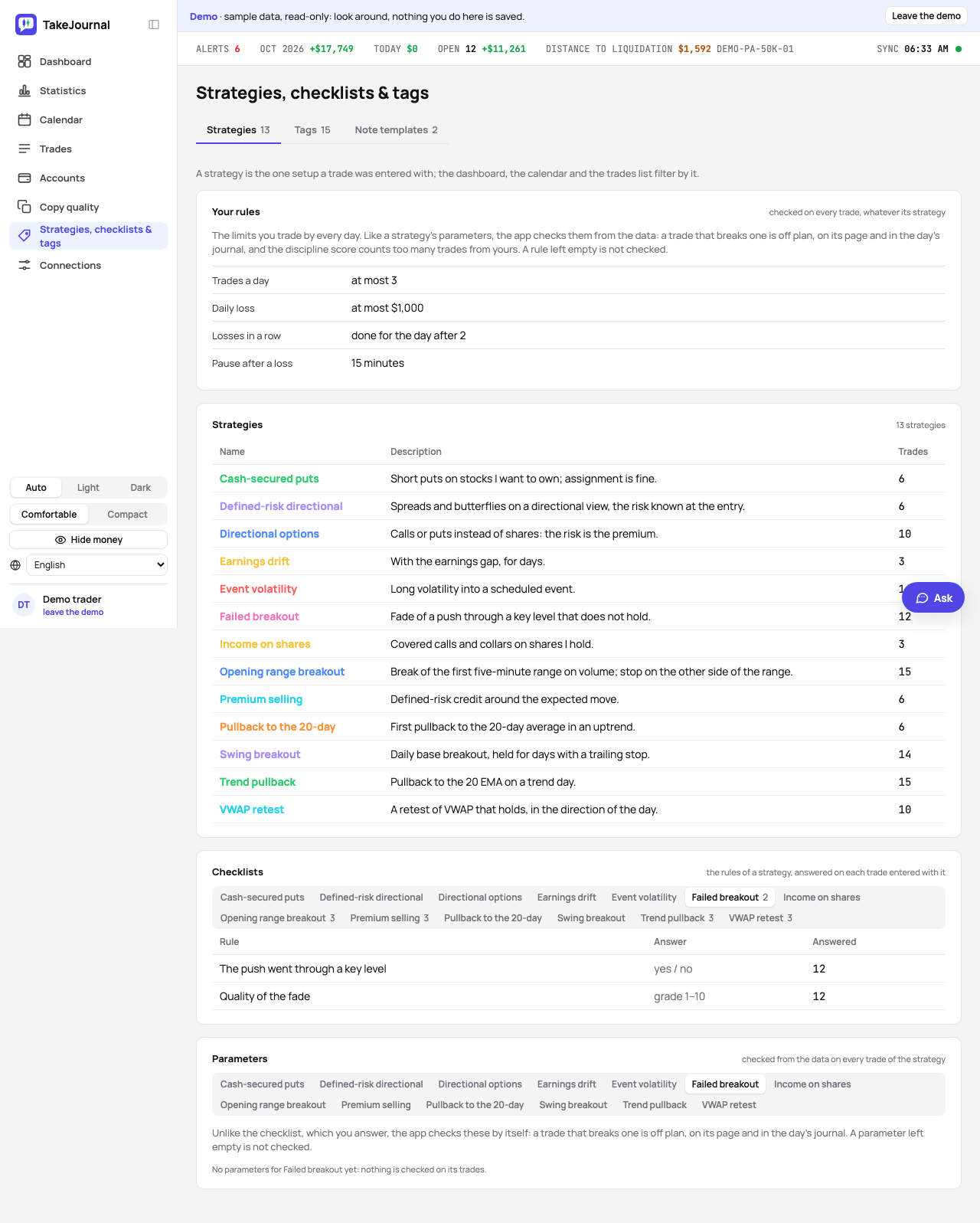
The Strategies, checklists & tags page has two tabs. Strategies lists the setups with a description and a colour each, and its Checklists card has a tab per strategy with the rules: add one with the form of its answer, yes/no or a grade. The form stays once trades answered the rule, so a rule you no longer ask is archived (its answers stay) and a changed one is added anew; deleting a rule deletes its answers. Tags keeps the tags by category, a tab each and one for the tags without; a new tag is created in the open category. A strategy, a rule, a tag or a category deleted here goes at once and the message at the bottom offers Undo for ten seconds; merging two tags, which cannot be undone, asks first.
The Trades page filters by strategy, by tags (with or without) and by the checklist, and the bulk edit sets the strategy and adds or removes tags on many trades at once: tick the rows (Shift-click selects a range), choose a strategy, tags to add or tags to remove, and press Update 12 trades. In the All accounts view the rows carry the decision’s stars, strategy and tags; the bulk edit works in the Master only view, which the list says.
The list comes in pages of whole trading days, 50 trades by default; 25 or 100 are chosen under the list, where the page’s range and the total stand (1–53 of 478). A busy day stays on one page, so a page can hold a few more. The count and the P&L above the list are every page’s. Ticking the box at the head of the list selects the page; the line beneath then offers Select all 478 trades, so a bulk edit can take everything the filters keep.
A strategy’s parameters
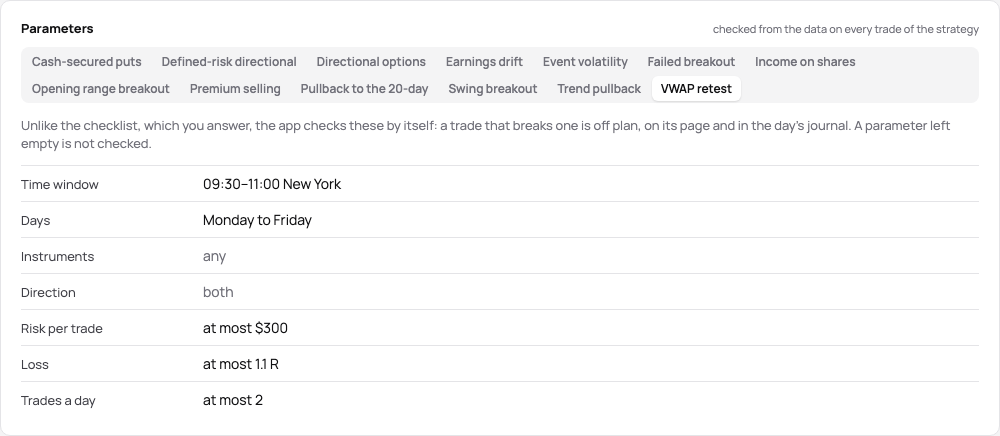
Section titled “A strategy’s parameters”The Parameters card, below the checklists on the Strategies tab, holds what the app checks by itself on every trade of a strategy, from the trade’s own data: unlike the checklist, nothing is answered. Each parameter is optional, and one left empty is not checked.
- Time window — the entry’s time, in the time zone chosen beside it (New York to begin with). The end’s minute is in, so an entry at 11:30 keeps 09:30–11:30; a window ending before it starts runs over midnight.
- Days — the entry’s weekdays in that zone; none chosen is every day.
- Instruments — chosen from what you trade: a future’s root (MNQ), a stock, a pair, an option’s underlying.
- Direction — long only or short only. An option strategy of several legs has no direction and is not checked for one.
- Risk per trade — at most this much money, in your profile’s currency. It is the risk the trade’s page shows: the planned stop’s distance × the size × the point value, else the risk typed in the plan (an option strategy’s maximum loss), else the account’s default risk; a trade with no known risk breaks it. So the limit holds alike for futures, stocks, forex, CFDs, crypto and option strategies.
- Loss — at most this many R: whether the stop was kept. 1.1 leaves room for slippage.
- Trades a day — with this strategy on one trading day, counted on every account; one more breaks it.
Set parameters opens them as fields and Save parameters saves them. A value that cannot be checked, such as a window with only its start, is refused with the reason, and the fields keep what you typed. Afterwards the card shows the values, and Edit parameters opens them again. The check is worked out from the trades each time and never stored, so a strategy given to a trade later, a stop moved or a parameter changed checks the trades again at once.
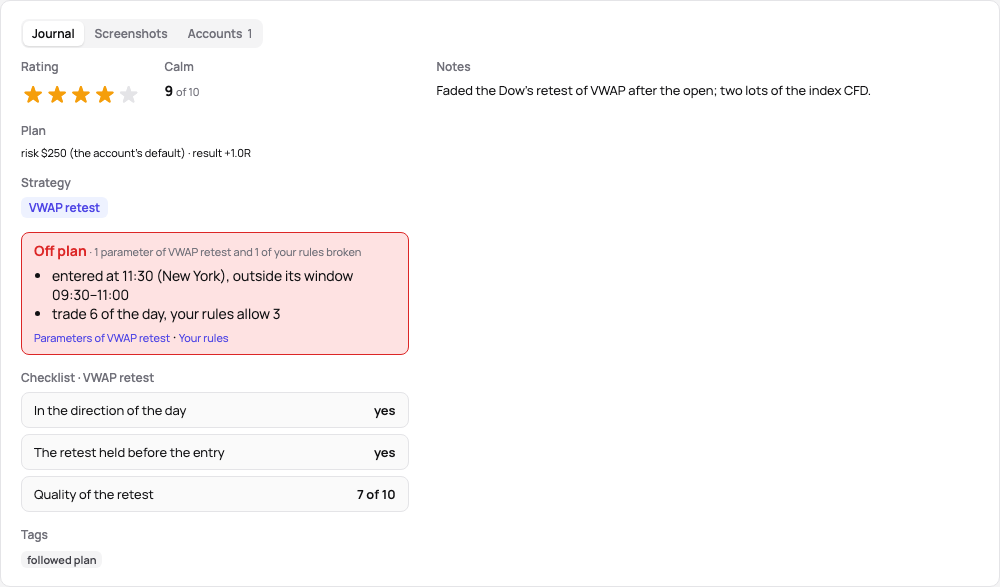
In a trade’s journal, under its strategy, In plan says that every parameter was kept. Off plan names each one broken in words, such as entered at 13:30 (New York), outside its window 09:30–11:30 or risk $320, at most $200, with a link to the parameters. The trade’s heading carries the same as a chip, and on the day’s page each trade’s row says ✓ in plan or off plan: at 13:30 · risk $320.
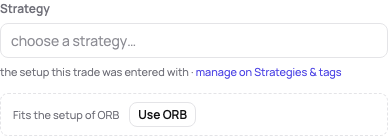
A trade without a strategy is matched to your strategies by the parameters that describe a setup: the time window and days, the instruments and the direction (the risk, the loss and the trades a day judge a trade but do not describe it). The one it fits is offered under its strategy field, Use Opening range gives it to the trade with Undo, and the day’s row offers it too; when several fit, each is offered, the one your day’s plan names first. A trade that fits none, while some strategy has such parameters, is off plan: no strategy of yours fits it. An inactive strategy is not offered.
Your rules
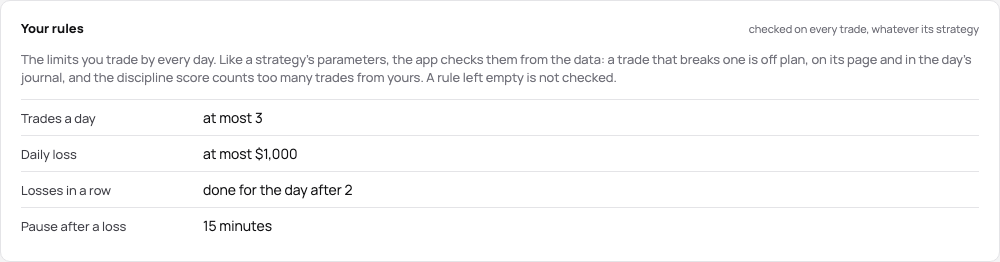
Section titled “Your rules”The Your rules card, at the top of the Strategies tab, holds the limits you trade by every day, whatever the strategy. Like a strategy’s parameters, the app checks them on every trade from its data, a trade without a strategy too. Each rule is optional, and one left empty is not checked.
- Trades a day — at most this many on one trading day, every account and strategy together; one more breaks it. The discipline score counts its too many trades from this number instead of the fourth trade.
- Daily loss — at most this much money, in your profile’s currency: a trade entered once the day’s closed result reached it breaks it. The day counts as the day’s page shows it, a decision copied to several accounts once, with its lead account’s result.
- Losses in a row — done for the day after this many: a trade entered after them breaks it.
- Pause after a loss — the minutes to wait: a trade entered sooner after a loss breaks it.
A broken rule shows where a broken parameter does: under the strategy in the trade’s journal (entered 4 minutes after a loss; your pause is 15 minutes) with a link to your rules, in the trade’s heading, and in the day’s rows (off plan: 4 min after a loss). Set your rules opens them as fields and Save rules saves them; afterwards Edit rules opens them again.
Undo a bulk edit
Section titled “Undo a bulk edit”A bulk edit applies at once, and its message at the bottom of the page offers Undo for ten seconds. Later, the Trades page’s Recent changes list the bulk edits (of trades and of accounts) and the imports of the last 30 days, each with Undo (an import’s says Revert import, see the reports): the strategy and the tags of a bulk edit’s trades go back to what they were, and a tag or strategy it created goes when nothing else uses it. An undo waits while one of its trades was changed again since, on the trade’s page or by a later bulk edit; the dialog says which, with links to the trades, and a later bulk edit is undone first. The list shows the newest first, 50 to a page (25 or 100 to choose).
Note templates and reviewed trades
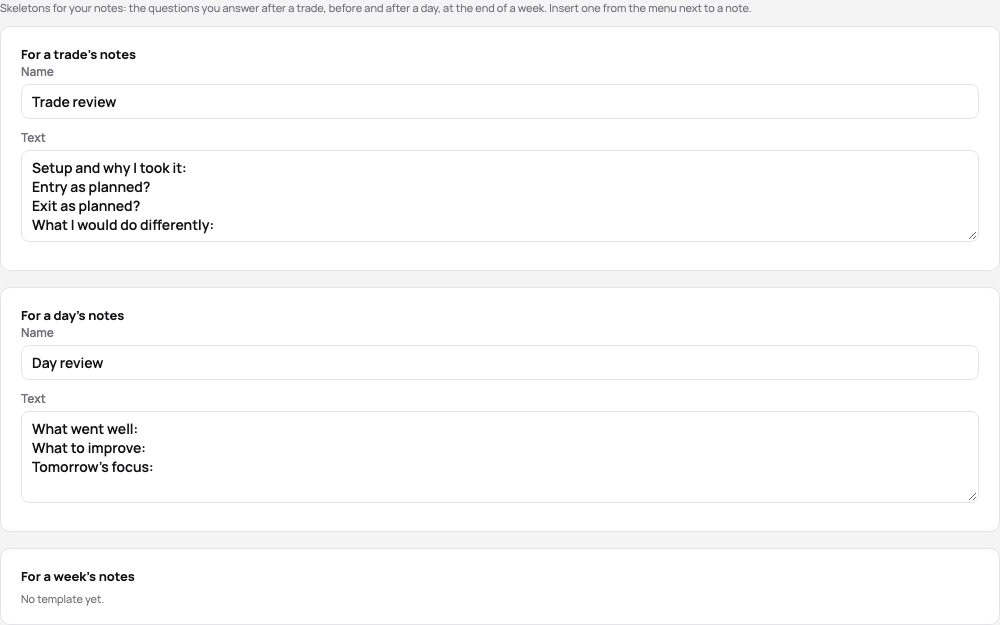
Section titled “Note templates and reviewed trades”Note templates are the questions you answer every time, written once: for a trade’s notes, a day’s and a week’s. Strategies, checklists & tags → Note templates keeps them, each with a name and its text, saved when you leave a field; New template adds one, Delete template removes one with an undo. Next to a note, Insert template… puts a template’s text into it (after what is there already) and saves.
Mark reviewed at the top of a decision’s page, or R on the keyboard, marks the trade as reviewed; pressing it again takes the mark away. The trades list shows a ✓ next to a reviewed trade, and Only not reviewed lists the ones still waiting, so a review session goes through them with ‹ › until the list is empty. The mark stays with the decision when its accounts are regrouped; two decisions that become one stay reviewed only when both were.
Partial exits
Section titled “Partial exits”A trade runs from a flat position back to flat, so its result is the same however its exits are matched to its entries. When the position was built at several prices and closed in parts, the account’s Partial exits matched setting decides how that result is split between the exits:
- FIFO – an exit takes the oldest units still held first, as brokers’ statements count;
- LIFO – the newest units first;
- Average cost – the average price of all the units still held, as crypto exchanges count.
Automatic, the default, is FIFO, and the average cost for crypto and perpetuals. The Fills tab of a trade with partial exits shows each exit’s result by the account’s method, after its own fee and its share of the entries’ fees (a perpetual’s funding and a forex swap count in the trade’s result only). An open trade with exits so far shows Realized so far among its facts. The method is chosen on the account’s page (Edit on the Account card) and applies at once: nothing is built again, and the trades’ results, the balance, the calendar and the statistics stay as they are.
Bought 50 shares at 199.80, 60 at 205.30 and 40 at 213.00, then sold 70 at 215.40 and 80 at 222.45: the trade made $2,046. FIFO splits it +$982 and +$1,064, LIFO +$399 and +$1,647, the average cost (205.52) +$691.60 and +$1,354.40.
A missing close
Section titled “A missing close”A broker’s history can lack a fill: the NinjaTrader add-on was not running, or a sync read only the last days. The connections that report their positions – the NinjaTrader 8 add-on from version 1.2.0, Rithmic, TopstepX, OANDA, cTrader, DXtrade, IG, Capital.com, TradeLocker and the MetaTrader programs from version 1.3.0 – send each account’s open positions with every sync, and TakeJournal compares them with the position your fills give:
- Where the broker holds no position while the journal still holds a trade open, its close is missing: the trade is
closed without an exit there. Its exit and result are unknown (
? (close missing)), so it is left out of your statistics, the calendar and Spotter, and new fills are never paired with it. - Where the positions differ in a way no missing close explains (the broker long 3, the journal long 1), no trade changes; the open trade’s page says what each side shows.
- A difference counts from its second report on, so a fill still on its way raises nothing.
- The trade’s page, the account and the connection’s card say so, and an alert of the kind A missing close comes on the Accounts page, on your devices with notifications and by e-mail; Profile → Notifications switches it off.
- The stock brokers report their positions too: tastytrade with every sync, Interactive Brokers (when its Activity query includes Open Positions) and the brokers through SnapTrade once a day, with the history they read. A difference no missing close explains (shares transferred in from another broker) changes nothing there and raises no warning.
Fix it on the trade’s page: Add the closing fill (its side, size, price and time; the trade closes with its result), import the day’s fills again where the account takes a file, or Close it without an exit (the trade stays out of your statistics and the alert ends). Rithmic reports only the contracts an account holds or traded that day, so a close it no longer knows of is found once the account trades that contract again. NinjaTrader 8: a missing close →
Splits and symbol changes
Section titled “Splits and symbol changes”A split changes how many shares a position holds without a trade: after a 2-for-1 split, 30 shares are 60 at half the price. Stock split or symbol change on a stock trade’s Fills tab types one in: a split (more new shares than old, 2 for 1 or 3 for 2), a reverse split (fewer, 1 for 10) or a symbol change (a new ticker for the same shares), with the day it takes effect. The stock’s fills before that day then count as they would after it, on every trade of the account: a split multiplies the shares and divides the price, a symbol change gives the new ticker, so a sale after the day closes what was bought before it. Each trade’s result stays the same, and the fills themselves stay as the broker reported them.
The Fills tab shows the split or symbol change at its day, and a fill it changes with the broker’s quantity, price or ticker struck through beside what counts now. Edit and Remove on its row change it, and Recent changes on the Trades page lists each one with Undo. It works on any of your accounts, also one a broker syncs.
Interactive Brokers (the Corporate Actions of its Activity statement, through the connection or in a Flex Query file), tastytrade and SnapTrade report a stock’s splits and symbol changes, and they come in with the sync or the import, marked from the broker: they stay as the broker reported them, without Edit or Remove. A split counts by the ratio the broker states, or by the shares it took out and gave back where they make a plain ratio (4 for 1, 1 for 10, 3 for 2); a stock dividend’s new shares by what the account held before it. One you typed in already is not taken twice, and one typed in beside the broker’s is refused. What the journal does not count (a merger, a spin-off, a split whose ratio the broker leaves out, an option’s adjustment) an imported file lists among its rows not counted: type such a split in yourself, and close by hand a position a merger took away.
A sync or an imported statement keeps on the account what it could not count. The account’s page and the stock’s Fills tab list each one with its day, what it moved, the broker’s words and what to do: type the split in, add the closing fill a merger leaves out, or add the shares a spin-off or a transfer moved. Done takes it away once the position adds up, with an undo.

An option on the stock is adjusted with it. A whole split (2 for 1, 3 for 1) offers in its form to adjust the options you held across it the standard way: so many contracts for one at the strike divided alike, each its own row on the option’s Fills tab. For any other, Option adjustment on an option trade’s Fills tab types one in: After a split (the new contracts for the old ones and the new strike) or New deliverable (the same contracts under the new root the broker names, such as MSFT1, and the shares one contract delivers). Interactive Brokers’ and tastytrade’s adjustments of an option come in with the sync or the import.

Related
Section titled “Related”The AI answers from our guide: how TakeJournal works, imports, prop accounts, the plans.
Your question goes to Anthropic to be answered. We keep the conversation for 30 days to improve the guide, then delete it. No investment advice. Privacy policy