Spotter, the coach that speaks up
Fleet. Spotter’s messages do not count as AI answers.
Spotter is the coach beside you during the session. It reads your journal as soon as new trades come in, and every minute while TakeJournal is open or a device of yours takes notifications, and speaks up by itself when your trades or your rules give it a reason: before the session, during it, after it, once a week and when something goes well. It speaks of your behaviour and your own rules only, never of what to buy or sell.
When it speaks
Section titled “When it speaks”- Before the session. From 5:00 in your time zone, before the first trade you open that day: your last session’s trades off plan, a weekday that has been losing you money, or first trades of the day that lose more often than not.
- During the session, on a trade of the last half hour:
- a rule of yours broken: the pause after a loss, losses in a row, the daily loss, trades a day (your rules);
- a trade off its strategy’s plan (a strategy’s parameters);
- where you have no rule for it: 80 % of your daily loss used, two losses in a row, a new trade within 15 minutes of a loss, more trades than you usually make. Where your history holds five such moments and the next trade lost more often than not, it says what that next trade did.
- After the session, an hour after the day’s last trade closed: how many trades kept the plan, or the day’s result.
- On a success: 5, 10, 20, 40 or 60 trading days in a row without a rule broken.
- Once a week, after the week’s last session: where the last four weeks leaked money, as the dashboard’s findings see it.
Where you see it
Section titled “Where you see it”- The dashboard: the Spotter card at the top, today’s messages newest first; before today has any, the last session’s. It is a card like the others: move it or minimise it with Customize.
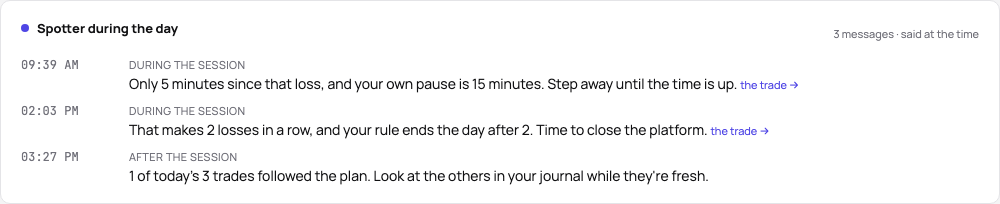
- The day’s page: “Spotter during the day” above the day’s AI review, each message at the time it was said, with a link to the trade it answered. The day’s and the week’s AI reviews read these messages and say whether you heeded them.
- The week’s page: “Spotter this week” above the week’s review: the week’s finding, the successes, the messages by day.
- On any page: what Spotter says while TakeJournal is open shows as a short message wherever you are.
- Your devices: where push notifications are on (Profile → Notifications → Alerts → On this device), each message also while TakeJournal is closed, without its amounts, since it shows on a lock screen; a tap opens the day’s page. On an iPhone or iPad in the installed app (The app).
How often
Section titled “How often”At most 5 messages a day: one before the session, three during it, one after it; 30 minutes between two during the session; each reason once a day. Spotter reads your journal as soon as new trades come in: a sync that brought fills (the sync while TakeJournal is open too), the NinjaTrader or MetaTrader add-on, a file imported into an account. Otherwise it reads every minute while a page of TakeJournal is open or a device of yours takes notifications, so the morning’s and the evening’s words come on time.
In the AI’s words
Section titled “In the AI’s words”With Worded by the AI switched on in Profile → Notifications → Spotter (on unless you switch it off), the AI words each message in your language: the same meaning in one or two sentences, at times with a short step that follows from it, such as a pause or the plan first. It reads only the message’s facts: the trade’s symbol, size, times and result, the day so far, and the rule or the history the message quotes; no notes and no account names. It adds no number of its own and never says what to trade. When the AI cannot answer, Spotter says its plain sentence; read in another language than the one it was worded in, a message shows the plain sentence in that language.
Practice accounts
Section titled “Practice accounts”Spotter leaves practice accounts out: a demo, paper or simulator account counts neither in today’s messages nor in the history they quote, so testing on a simulator never reads as your behaviour. Evaluation, funded, live and personal accounts are read together, as one trader. If you train on a simulator and want Spotter there too, switch on Watch practice accounts too in Profile → Notifications → Spotter.
Switching kinds off
Section titled “Switching kinds off”Profile → Notifications → Spotter: before the session, during the session, after the session, a success, once a week, and below them Worded by the AI On my devices and Watch practice accounts too. Each switch saves at once. What Spotter said stays on its days and goes into the backup.
Related
Section titled “Related”AI reviews of your days and weeks · The journal of a trade · The dashboard
The AI answers from our guide: how TakeJournal works, imports, prop accounts, the plans.
Your question goes to Anthropic to be answered. We keep the conversation for 30 days to improve the guide, then delete it. No investment advice. Privacy policy