Your data: export, plans, deletion
Every plan.
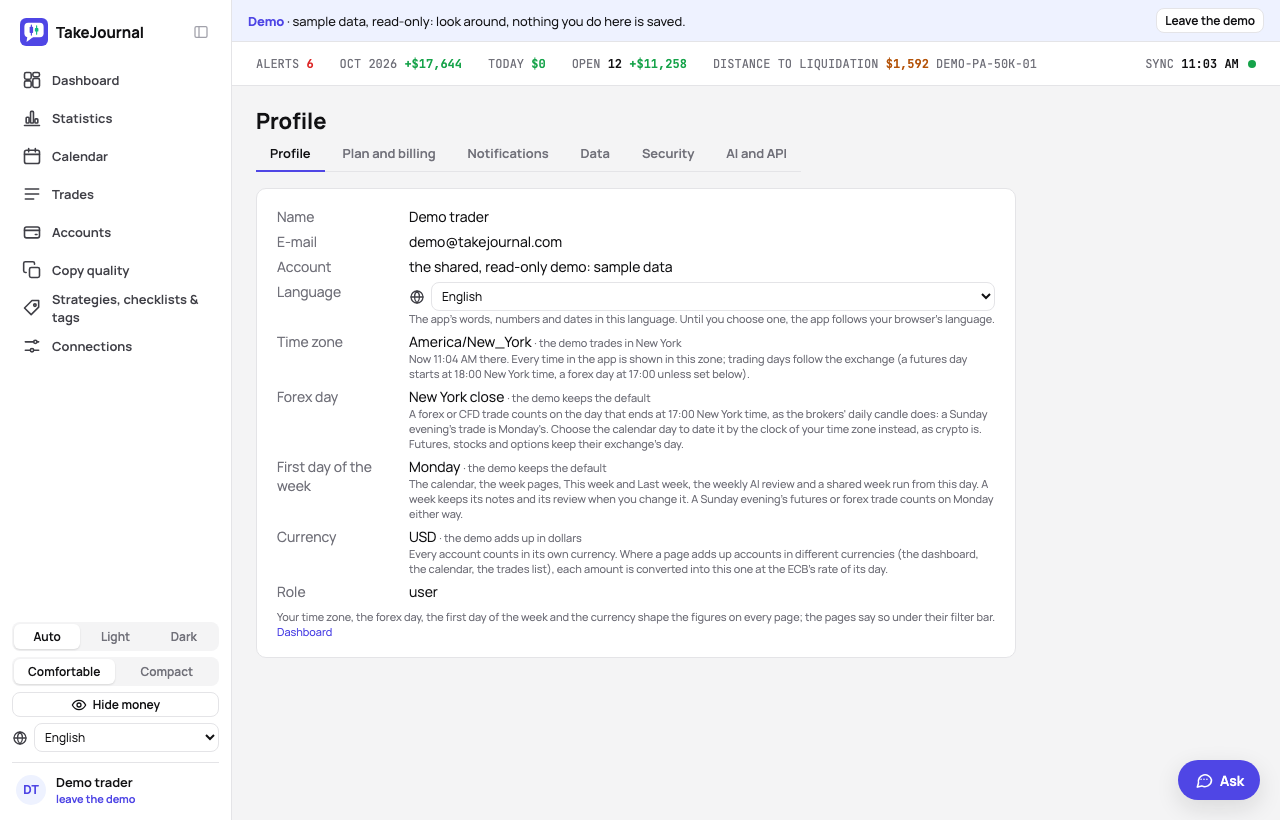
The Profile page has six tabs, each with its own address: Profile (the name, the language, the time zone, the forex day, the first day of the week and the currency), Plan and billing (the plan, the storage and the AI answers used), Notifications (the alerts, the AI reviews, Spotter, the news by e-mail and the app), Data (the export, the shared snapshots and starting over) and Security (Google, the password, two-factor sign-in and the deletion). The sixth, AI and API, holds the API keys for your own scripts.
Export
Section titled “Export”Profile → Data → Export: the trades of every account (Trades, all accounts), each decision once (Trades,
master only), the fills and the cash ledger as CSV (UTF-8, comma, times in UTC), and everything at once as one JSON
document (accounts, trades, the trades folded over their accounts — logical trades, the technical name — fills, cash,
strategies, tags and categories, day and week notes, the AI reviews, what Spotter said). The Trades page exports the
filtered list with Export CSV. The plan’s history window applies; MFE/MAE and the copy audit’s warnings come along
on the plans that have them. Both trade files carry a tradingDay column, the trading
day the app counts the trade on, so a day’s rows can be checked
against the firm’s statement. Every file carries a currency column, the account’s
currency its amounts are in (the fills: the commission’s).
Language
Section titled “Language”Language on the Profile page sets the app’s language: its words, and how it writes numbers and dates (1,234.50 in English, 1.234,50 in German). Until you choose one, the app follows your browser’s language among those it offers; the choice Auto brings that back. The app is translated into English, Spanish, Brazilian Portuguese, German, French, Italian, Polish, Turkish, Japanese, Czech, Korean, Vietnamese, Indonesian and Simplified Chinese; it offers each language once its translation has been checked. The same choice sits at the foot of the sidebar beside the theme, with a globe (in More on a phone), and under the sign-in form, where it holds in this browser until you sign in and then becomes your profile’s; in the demo it opens the demo in that language.
Time zone
Section titled “Time zone”Every time in the app is shown in the time zone of your profile; on your first visit the app stores your browser’s, and the Profile page changes it. A trader in Europe can set New York to read the times as the firm does. The trading days do not move with it: they follow the exchange, as described in the calendar. The exports write UTC.
Forex day
Section titled “Forex day”A forex or CFD trade counts on the day that ends at 17:00 New York time, as the brokers’ daily candle does: a Sunday evening’s trade is Monday’s. Forex day on the Profile page switches it to the calendar day of your time zone, as crypto is dated, for a trader who runs the day by the clock. The choice applies at once to the trade’s day, the calendar, the statistics and the reviews; futures, stocks and options keep their exchange’s day either way (forex and CFDs).
First day of the week
Section titled “First day of the week”First day of the week on the Profile page starts the weeks on Monday (the default) or on Sunday, as US calendars do. The calendar’s rows and their week totals, the dashboard’s month, the week pages, This week and Last week in the date filter, the weekly AI review and a shared week follow it. A week keeps its notes and its review when you change it: a week is named by the Monday inside it, so under Sunday the week of Monday the 14th runs from Sunday the 13th to Saturday the 19th. A futures or forex session that opens on Sunday evening counts on Monday either way (the trading day).
AI reviews
Section titled “AI reviews”On Trader and above, Review every week by itself in Profile → Notifications has the AI review each week in which you closed trades, early on Saturday, without an AI answer (AI reviews). It is off for a new account: with it off, nothing is sent until you ask for a review on a day’s or a week’s page.
News by e-mail
Section titled “News by e-mail”News by e-mail in Profile → Notifications allows or stops product news and offers by e-mail. It is on unless you ticked the box at sign-up, and each such e-mail has a link to stop them. E-mails about your account, payments and security come either way.
The app
Section titled “The app”TakeJournal installs as an app on a phone or a computer: it opens in its own window from the home screen or the dock, and takes the alerts as notifications (Alerts). Profile → Notifications → The app has Install TakeJournal where the browser offers it (Chrome and Edge); elsewhere it says where the browser keeps it: on an iPhone or iPad, open TakeJournal in Safari, tap Share, then Add to Home Screen. Firefox on a computer does not install apps.
Without a connection the installed app still opens, says it cannot reach the server and offers Retry; your journal is never kept on the device.
Shared snapshots
Section titled “Shared snapshots”Profile → Data → Shared snapshots lists the public links you made with Share on a day’s or a week’s page or in the calendar, with how often each was opened; Revoke ends one at once (sharing).
Starting over
Section titled “Starting over”Profile → Data → Start over clears the journal and keeps your TakeJournal account: for a clean slate after test data or a wrong import. Export everything first (JSON) sits beside it. Start over… says in numbers what goes: the trades with their fills, notes and screenshots, the day and week journal, the AI reviews, the cash records, the imports’ history with their kept files and the shared pages, with the typed prices and the trades’ chart data. Three choices are ticked, so these stay unless you untick them:
- Accounts and connections: the accounts stay with their settings and firm rules, emptied. A broker connection then downloads its trades again, the whole history the broker gives; to keep them out, untick it, or delete the connection in Connections first. Unticked, the accounts and connections go with their stored broker logins.
- Tags and strategies, with their checklists and parameters.
- Settings: saved views, note and import templates, your trading rules, the alerts and the dashboard’s layout.
Your plan and billing, your sign-in, the profile, the notifications and the AI chats always stay. Type DELETE (the same word in every language) and confirm: the journal goes at once, and a message says how many trades went and which connections download theirs again. There is no undo: the nightly backups keep the old journal 14 days, then it is gone. The demo cannot start over.
Plans and the trial
Section titled “Plans and the trial”Profile → Plan and billing shows your plan, the storage and the AI answers used and, on Free, Start your 7-day trial of Pro. When a plan ends or you downgrade, nothing is deleted: the features of the higher plan stop, accounts above the limit wait until you choose which stay in use (a broker account left out is not synced, a manual one is read-only; your plan’s accounts), and trades closed before the plan’s history window hide until a plan allows them again. Open positions always show, however long ago they opened. Pricing →
Upgrade and billing
Section titled “Upgrade and billing”Profile → Plan and billing shows your plan, what it includes and its limits, and a paid subscription with the day it renews. Its Upgrade, the one in the sidebar on Free, and the Upgrade link wherever your plan lacks something open Plans: every plan side by side with its price a month or a year (a year costs nine months), who it is for, its limits and what it adds to the plan below. Under the plans, Start my plan now is asked before the payment: the plan starts at once, and if you withdraw within 14 days of the first payment, you get back the part you have not used (Terms). A plan’s Choose button then opens Stripe’s payment page, which adds the VAT from your billing address (an EU business enters its VAT ID there) and takes a promotion code; going back from it returns to the plans. Back in the app, the new plan applies as soon as Stripe confirms the payment, and a running trial ends.
A link with a promotion code (it ends in ?promo= and the code) keeps the code in this browser for 30 days, through a
sign-up. Plans then says above the plans what it gives (a share or an amount off the first payment, the first months
or every payment, and until when it can be used) and the payment page applies it; Remove the code drops it. A code
Stripe would not take for the plan you choose, one for another plan or for first orders only, is said so before the
payment page, which then asks for a code of its own.
A prop firm’s partner code gives 30 days free, then 20% off Pro and Fleet for as long as you stay subscribed:
Plans says so, the payment page shows the days free before the first payment, and Trader, which the code is not
for, says so on its card and is paid without it.
While an offer runs, a bar at the top of every page names it to accounts without a subscription: what it gives, its code and its last day. See the plans opens Plans with the code applied; ✕ closes the bar for good for that offer.
With a discount, Plan and billing names it under your subscription: the code (or the offer’s name), what it takes off and until when, and the price you pay beside the plan’s own.
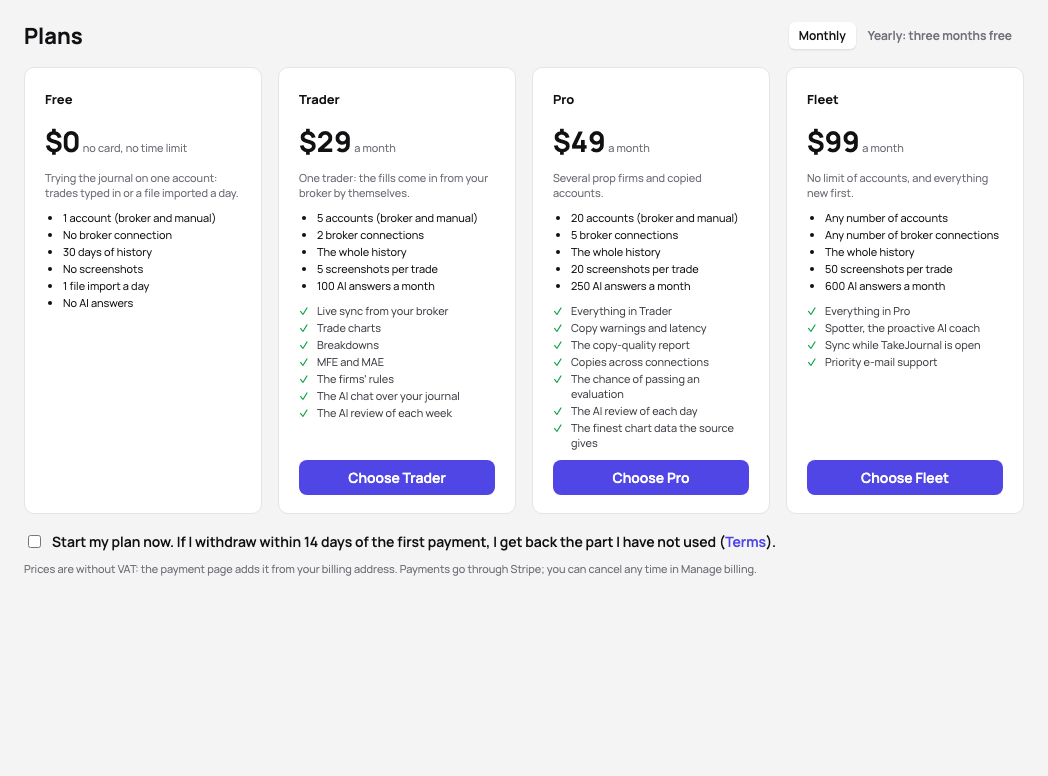
With a subscription, Plans marks your plan, and Switch to on another opens Stripe’s customer portal straight on the change of plan. Manage billing opens the portal itself: another plan or period (a bigger plan at once, the difference charged at once; a smaller plan, or monthly instead of yearly, at the end of the paid period), the card, the billing address and VAT ID, the invoices, and the cancellation, which takes effect at the end of the paid period. You keep the plan until then, and the portal can resume it. Plan and billing and Plans also show a change that waits for the end of the period, with the day it starts. Before a yearly plan renews, TakeJournal e-mails you the day and the amount with VAT, with a link to change or cancel it.
Pause… on Plan and billing pauses a monthly plan for one, two or three months instead of cancelling it (once in twelve months; a yearly plan cannot be paused). For each length the dialog names the day the plan comes back. You keep the plan until the end of the month you paid; then your account is on Free – nothing is deleted, the broker sync waits, accounts above Free’s limits wait read-only – and nothing is charged until the plan comes back with its next payment, at your price. TakeJournal e-mails you when you pause and a week before the pause ends. Cancel the pause takes it back before it begins; during the pause Resume now brings the plan back at once, with a new month charged today.
Cancel subscription… on Plan and billing asks first why you are leaving (you can skip it) and offers what may fit instead of a discount: the yearly plan or a smaller plan when the price is the reason, a pause of a monthly plan for one to three months, or a word to the team when something is missing. It then says what happens – the plan runs to the end of the paid period, your account moves to Free and keeps all its data – and opens the portal on the cancellation, where Stripe confirms it.
When a renewal fails, Stripe tries the card again for two weeks and e-mails you; the app shows a banner on every page with Update card and keeps your plan until the date it names. After that you are on Free until the card works again; nothing is deleted. When your bank wants the payment confirmed (3D Secure), the banner says so with Confirm payment.
Invite traders
Section titled “Invite traders”With a paid plan, Plan and billing shows Invite traders: your own link (it ends in /r/ and your code) and Copy link. A trader who makes an account through it and subscribes within 30 days gets the referral discount on their first subscription; Plans names it above the plans, and a promotion code they bring takes its place, as the payment page takes one discount. Once their first payment is 14 days old and not refunded, you get its amount without VAT as credit at Stripe, which Stripe takes off your next payments. Your credit stays within a year of your plan (a year’s price on a yearly plan, twelve months on a monthly one); a reward above that waits until your payments have used the credit. Under the link the card lists the traders your link brought: when they came, their plan, and your reward with its day, never their names or e-mail addresses. One reward per trader, and your own link does not work for you. A plan given to you for free (a 100% promotion code) keeps the link, and the trader still gets their discount, but earns you no credit: the card says so above the link, and a trader whose first payment came while your plan cost you nothing shows None: your plan was given for free. Under it, Your credit shows what is left and its movements: each reward credited and each amount Stripe took off a payment, with the credit after it. Terms
Google and the password
Section titled “Google and the password”Profile → Security → Sign-in says whether a Google account is linked. Link Google account links one, and then either way signs you in; Unlink takes it off again once the account has a password. An account made with Google has no password at first: Set a password there takes a new one twice (at least 8 characters), and from then on your e-mail address and that password sign you in too, and two-factor sign-in can protect the account; Change password then asks for the current one. Forgot the password? Forgot your password? on the sign-in page e-mails you a link to choose a new one.
Two-factor sign-in
Section titled “Two-factor sign-in”Profile → Security → Two-factor sign-in → Turn on asks for a code from an authenticator app (Google Authenticator, 1Password, Authy or another): scan the QR code, or type the key the dialog shows, and enter the six-digit code the app shows. TakeJournal then shows ten recovery codes, only this once: keep them apart from your phone (Copy or Download). From then on a sign-in with your password asks for the code the app shows, or for one of the recovery codes if you lost the phone; each recovery code works once, and New recovery codes replaces them all. A password reset asks for the code too. Turn off takes a code from the app or a recovery code. A sign-in with Google relies on Google’s own two-step verification. Lost both the phone and the codes? Write to support@takejournal.com: once it is clear that it is you, an administrator switches it off, and you get an e-mail about it.
Deleting your account
Section titled “Deleting your account”Delete your account at the foot of Profile → Security says what goes with it, in numbers: the accounts and trades with their journal, the screenshots, the chart data, the shared pages, the stored broker logins and keys, and your sessions. Export everything first (JSON) sits beside it. Delete account… asks you to type DELETE (the same word in every language) and your password; an account that signs in with Google only confirms with a fresh Google sign-in instead (Confirm with Google, back to the dialog within ten minutes).
Everything goes at once and you are signed out; the sign-in page says so, and an e-mail to the account’s address confirms it. A paid subscription is cancelled with the account, at once; nothing is refunded automatically. There is no undo: the nightly backups keep the data 14 days, then it is gone. A connection you delete yourself takes its stored login with it at once. The demo cannot be deleted, and an administrator’s account is deleted by another administrator in Admin › Users.
Related
Section titled “Related”The AI answers from our guide: how TakeJournal works, imports, prop accounts, the plans.
Your question goes to Anthropic to be answered. We keep the conversation for 30 days to improve the guide, then delete it. No investment advice. Privacy policy